Metrics
The Metrics tab provides an historic view of your server's performance and health. Data updates automatically if an auto-refresh interval is set, or manually when a new time range is selected.
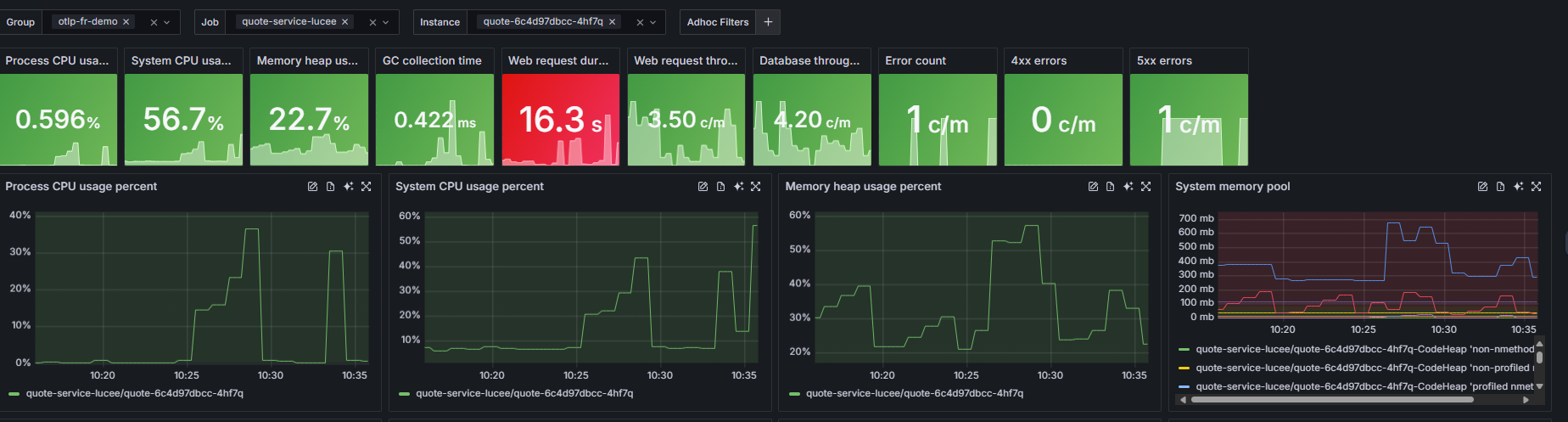
The Stats section displays key performance metrics as a grid of cards across the top of the page. Each card shows the current headline value plus its MIN, AVG, and MAX across the selected time range. Count-based metrics - DB Throughput, Errors, 4xx Errors, and 5xx Errors - show SUM, AVG, and MAX instead.
| Metric | Description | Why It's Useful |
|---|---|---|
| Process CPU | Percentage of CPU used by this specific process. | Detects CPU-intensive applications or bottlenecks. |
| System CPU | Overall CPU usage across the system. | Helps identify if the host system is under load. |
| Heap Usage | Amount of heap memory currently in use. | Useful for monitoring memory leaks or high memory consumption. |
| GC Collection | Time spent performing garbage collection. | High values may indicate inefficient memory management. |
| Web Request Duration | Average time to complete a web request. | Reveals latency or slow response trends. |
| Web Request Throughput | Number of requests handled per minute. | Shows traffic volume and server load. |
| Database Throughput | Number of database operations per minute. | Helps track query load and database responsiveness. |
| Error Count / 4xx / 5xx Errors | Number of failed or client/server-side errors per minute. | Quickly highlights failing transactions or service issues. |
Note
Panels refresh automatically if an auto-refresh interval is set using the top icon. Otherwise, they update when a new time range is selected.
Use the Select Group, Select Job, and Select Instance dropdowns to scope the stats and graphs to a specific server or service. Click + Filter to add a label filter - pick a Label, an operator (e.g. =), and a value - to narrow the data further by any metric label. Use the time-range picker (e.g. Last 1 hour) in the top right to set the window, and the separate auto-refresh control beside it to reload the data on a set interval.
The Datasources icon in the top right opens a panel where you choose which datasource to use for each type - for example, which Prometheus source backs the Metrics data.

Detailed graphs
Each graph provides historical trends for the metrics shown below.
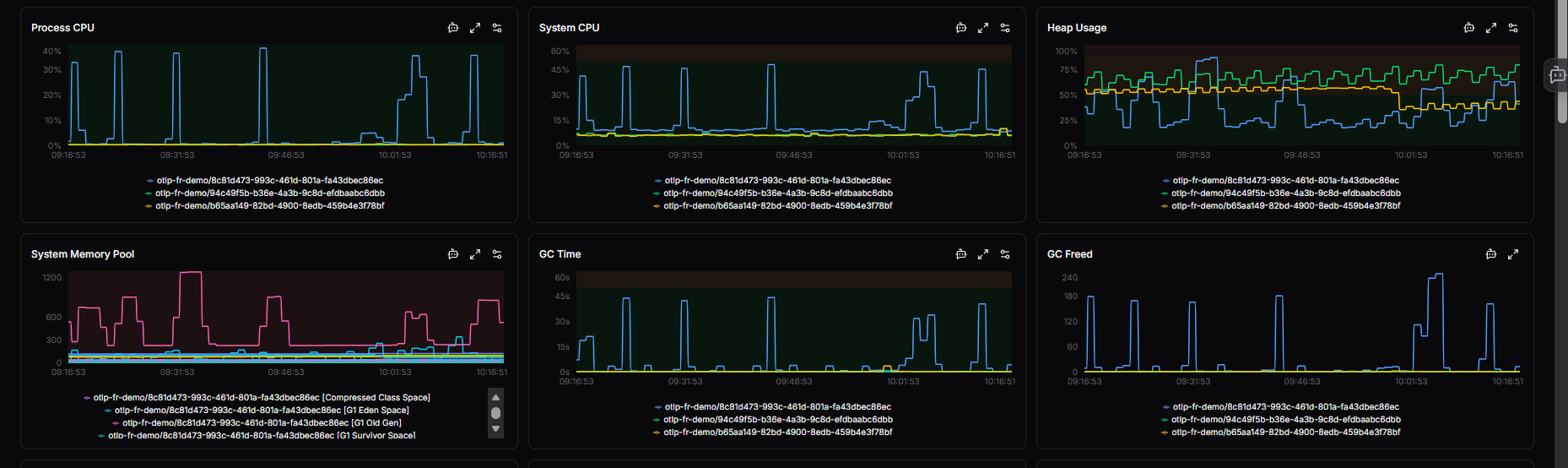
You can:
- Zoom in or out on a time range to analyze spikes or anomalies.
- Hover over data points to see exact metric values.
- Compare multiple metrics to find correlations (e.g., CPU spikes vs. increased error count).
Graphs include:
- JIT - just-in-time compilation time
- Request Duration and Web Requests - request latency and throughput
- Request Status - responses by status code
- Errors, 4xx Errors, and 5xx Errors - error rates by type
- DB Throughput - database operations over time
- Trace Throughput - traces by endpoint
This helps with root-cause analysis - understanding what led to a performance change or incident.
Metric graph actions
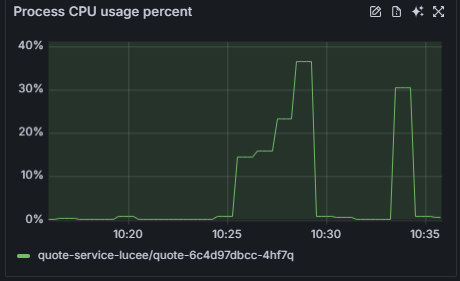
The top-right corner of each metric graph contains three action icons:
-
Ask AI - Send this metric to OpsPilot AI for natural language explanations and analysis of patterns or anomalies.
-
Full screen - Open the metric in full-screen view for detailed analysis and extended time ranges.
-
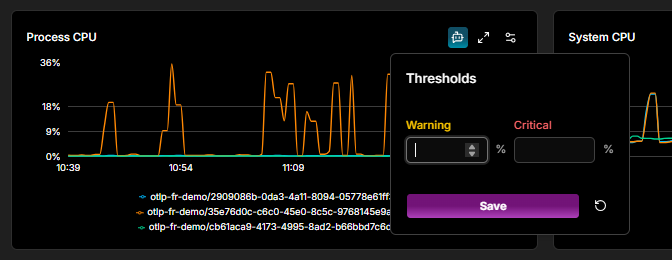
Edit thresholds - Open the Thresholds popover to set a Warning and Critical value for this metric inline (for example, as a percentage for Process CPU). Click Save to apply, or use the reset button to restore the defaults. When a metric exceeds a threshold, it is highlighted visually in the stat cards and graphs.
Need more help?
Contact support in the chat bubble and let us know how we can assist.