User Guide
OpsPilot is your AI-powered operations platform, combining autonomous background monitoring with an on-demand chat interface. Use the chat to investigate issues, query your telemetry in plain English, and get AI-guided analysis - without writing queries or navigating dashboards manually.
Access
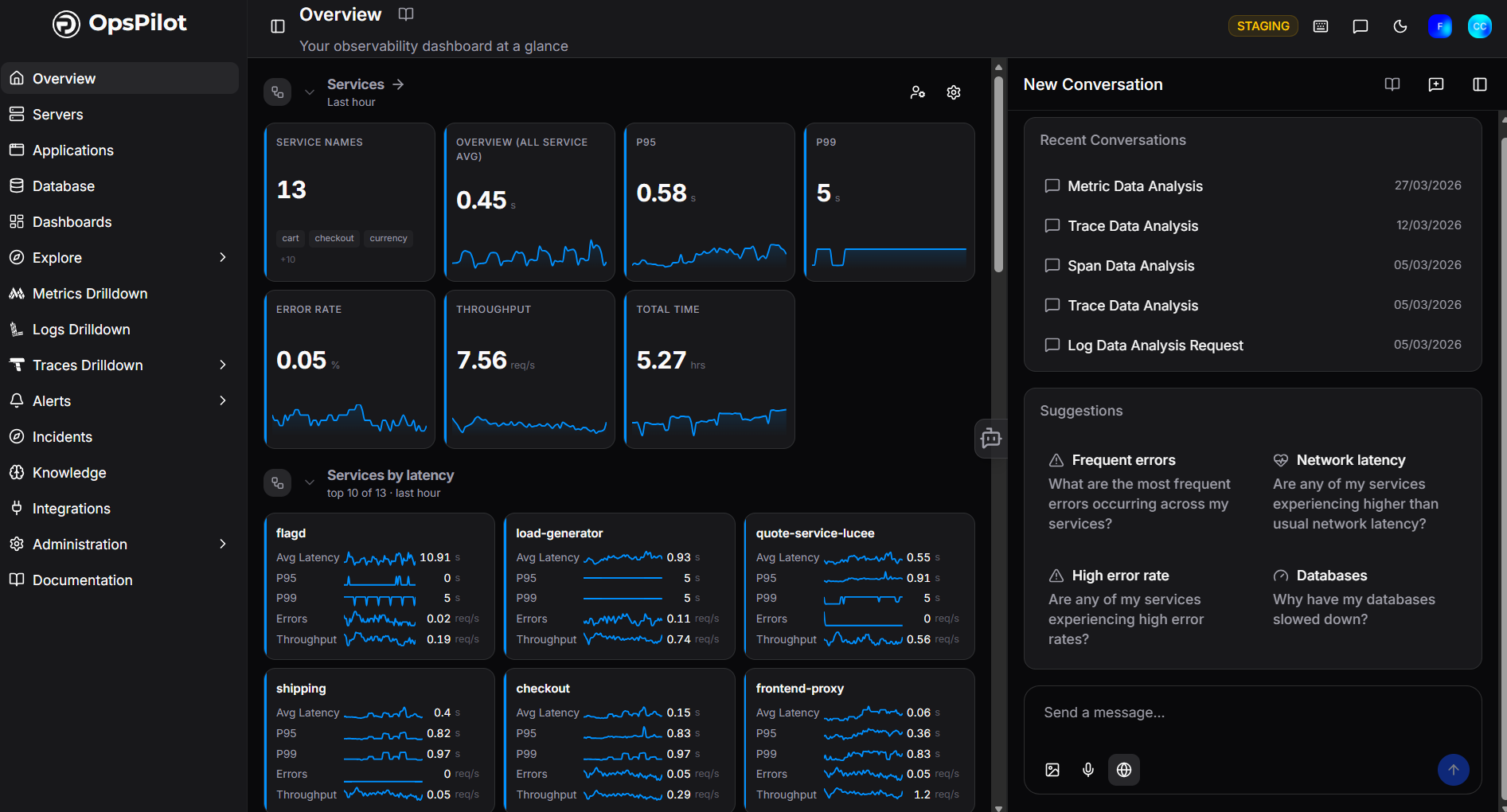
OpsPilot opens by default on login. It can also be accessed at any time via the OpsPilot integration buttons found throughout the platform.
Web Search Toggle
OpsPilot now includes a feature that allows users to enable or disable web search when asking questions. This gives you better control over how your queries are handled - especially when working with private or internal information.
Where to find it
In the assistant chat bar (bottom of the screen), there is a globe icon next to the microphone button. This icon is the web Search Toggle.

How it works
-
Enabled: OpsPilot will use live web search to help answer your question with up-to-date information.
-
Disabled: OpsPilot will only use internal knowledge and the connected knowledge base - no external web queries are made.
Why this matters
This feature was added primarily for privacy control. While web search is helpful, there may be cases where you might not want your input interpreted as a search (e.g., asking about passwords, credentials, or internal topics). With the toggle off, your message won't be used for any web searches.
Best practice
-
For internal, private, or sensitive questions → Keep web search OFF.
-
For general knowledge or live information → Toggle web search ON.
Suggestions
When you start a new conversation, OpsPilot displays a set of Suggestions - pre-built questions based on common observability scenarios. Clicking a suggestion sends it directly as your first message, giving you a fast starting point without needing to type anything.
Suggestions cover areas such as errors, performance, network latency, and database health. You can also ignore them entirely and type your own question in the message box at the bottom of the screen.
Conversations
Click the Conversations icon to view and search your previous OpsPilot conversations, grouped by date.

Voice mode
OpsPilot allows you to send a voice message instead of typing your query. This is yet another time-saving feature of the assistant.
Using voice mode:
-
Open OpsPilot (if not already open by default).
-
Click the blue microphone icon.
-
Wait for the 'I'm listening' written response.
-
Ask OpsPilot your question. For example, 'Do I have any errors?'
Tip
While recording a question, you can click the X icon to cancel it.
OpsPilot Vision
You can upload images to give OpsPilot visual context alongside your questions. Images can be added in three ways:
- Paste an image from your clipboard directly into the message box.
- Click the Attach Image button in the bottom left corner.
- Drag and drop an image from your file explorer.
PromQL queries
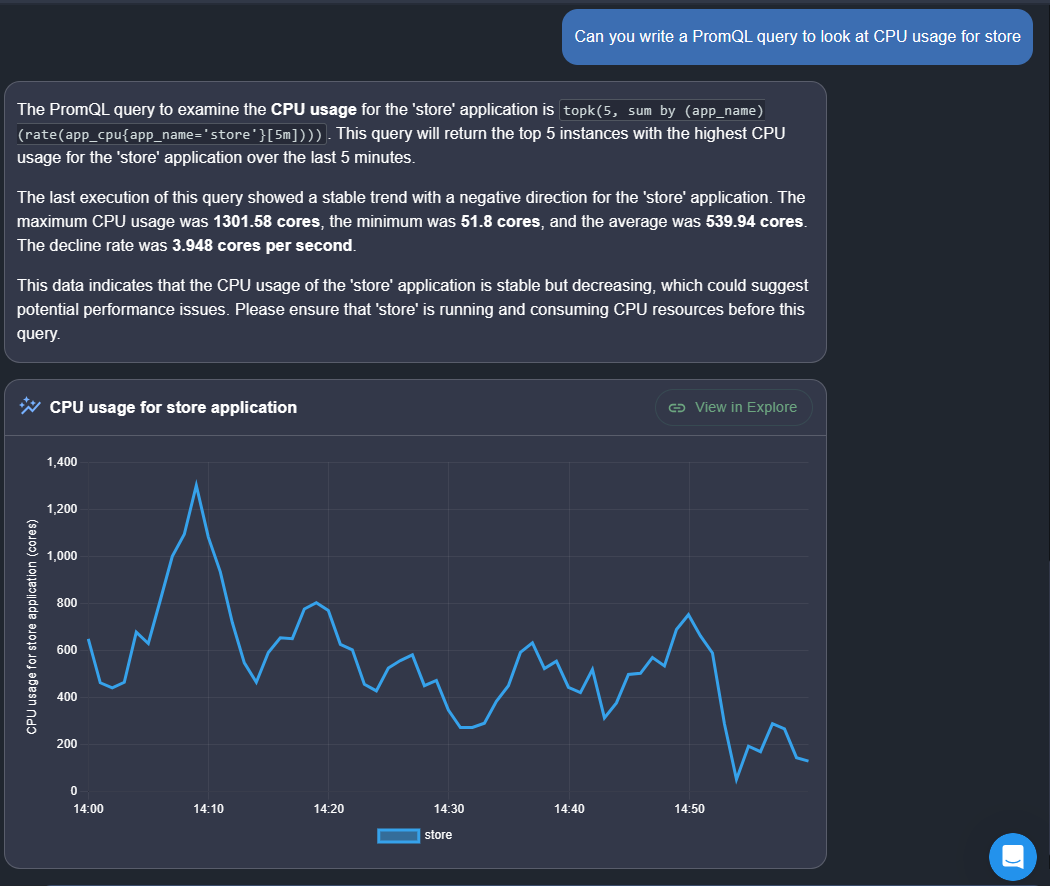
OpsPilot can generate and execute PromQL queries to answer questions about your metrics. Type your question in plain English and OpsPilot will build and run the query for you.
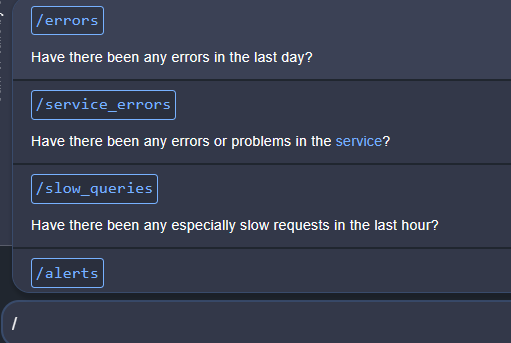
Type / to see a list of available commands.
Query specific time frames
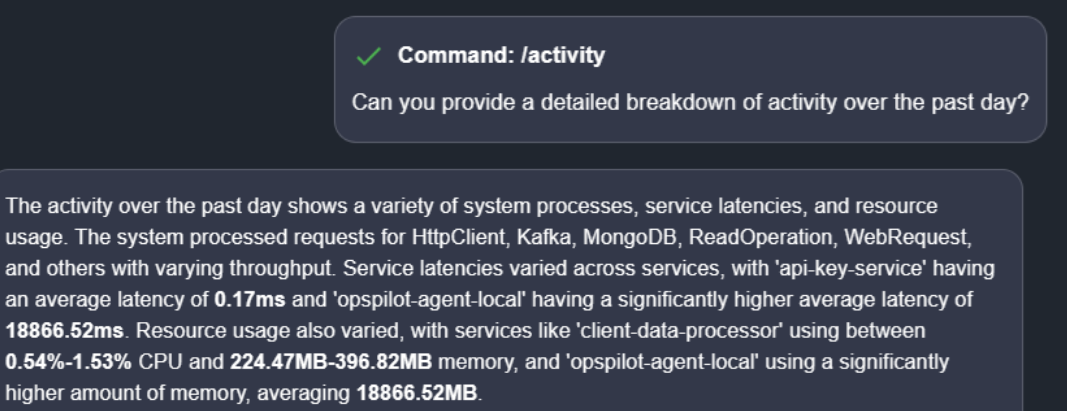
Whether you need to scrutinize recent performance data, investigate anomalies from a particular week, or review long-term trends, OpsPilot is at your service. Simply request information for the time frame of your choice, and OpsPilot swiftly generates insights tailored to that period. This feature ensures that you have the flexibility to focus on the time intervals that matter most to your monitoring and analysis efforts, empowering you to pinpoint issues, track progress, and make data-driven decisions with precision and confidence.
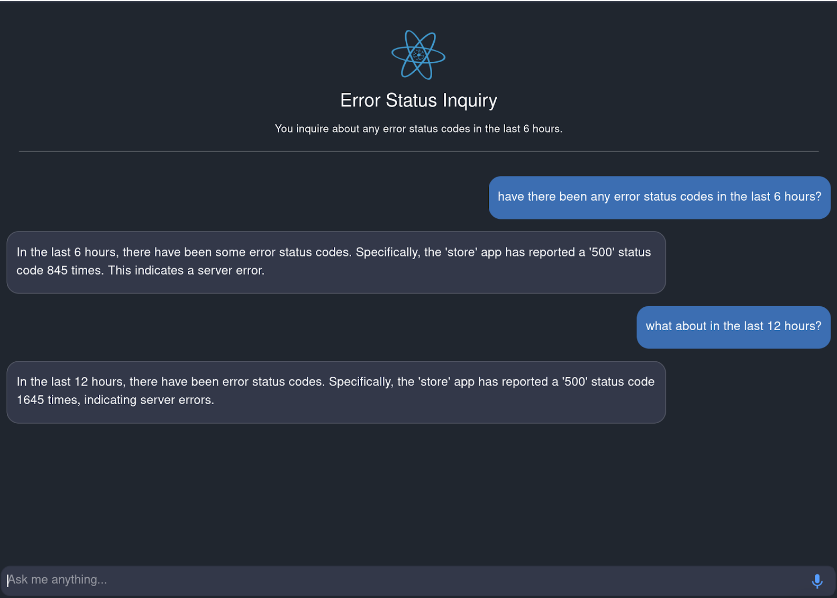
FusionReactor integration points
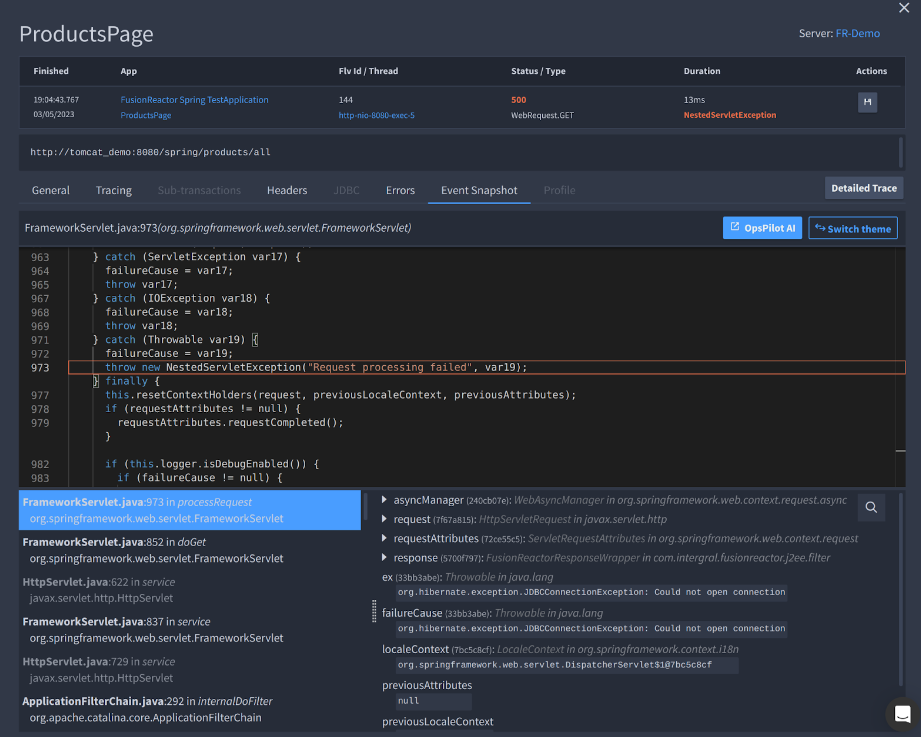
Wherever you see the blue OpsPilot AI button in the FusionReactor UI, you can send that context directly to OpsPilot for analysis.
Error context
🔎 FusionReactor > Applications > Errors > Trace > Error Snapshot
Click the OpsPilot AI button to send error details to OpsPilot. It will explain the method, identify potential causes, and suggest fixes.
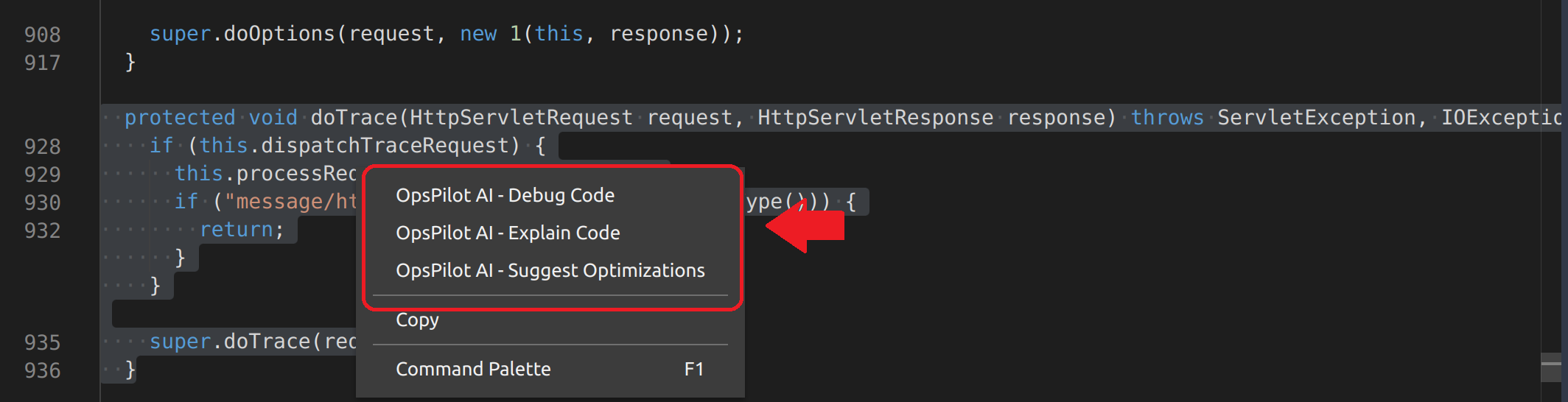
Code helper
Highlight any decompiled code and right-click to access three options:
- Debug code - flags potential error causes
- Explain code - explains what the code does
- Suggest optimization - recommends readability and performance improvements
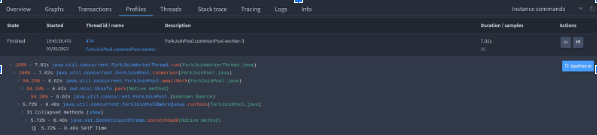
Profile
🔎 FusionReactor > Applications / Servers > Tracing > Trace > Profile
Sends profile data to OpsPilot for an explanation of where issues may be located.
Log explain
🔎 FusionReactor > Logging > Logs
Click the OpsPilot AI button next to a log entry to get an explanation of what caused it and suggested fixes.
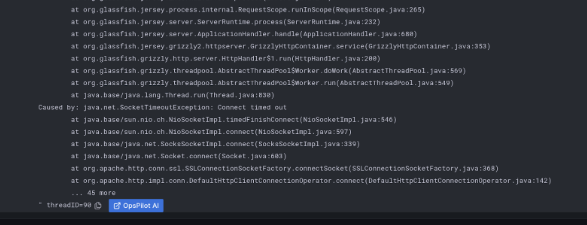
Stack trace
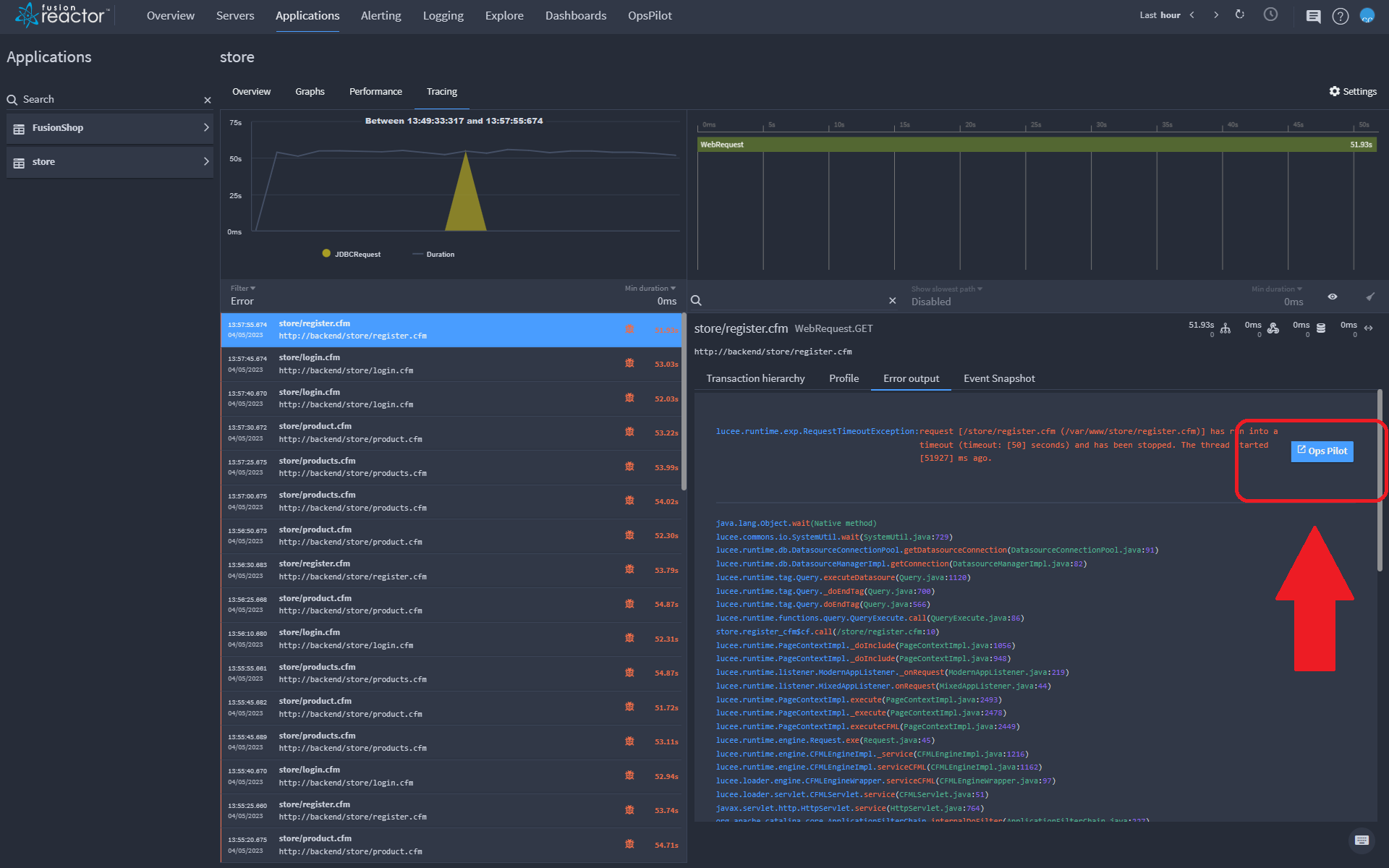
🔎 FusionReactor > Applications / Servers > Tracing > Trace > Error Output
Click the OpsPilot AI button next to an error to get insight into the stack trace and potential causes.
Need more help?
Contact support in the chat bubble and let us know how we can assist.