Tasks
Incidents leave follow-ups. Investigations surface action items. Work gets handed off. Without a central place to track it all, things fall through the gaps - buried in chat, forgotten in personal to-do lists, or assumed someone else picked them up.
Tasks gives you one board for everything - incident follow-ups, runbook steps converted to actions, and any standalone work your team needs to track. Everything assigned to you lands in one place, and the full org view means nothing gets lost. Access it from Tasks in the main navigation.
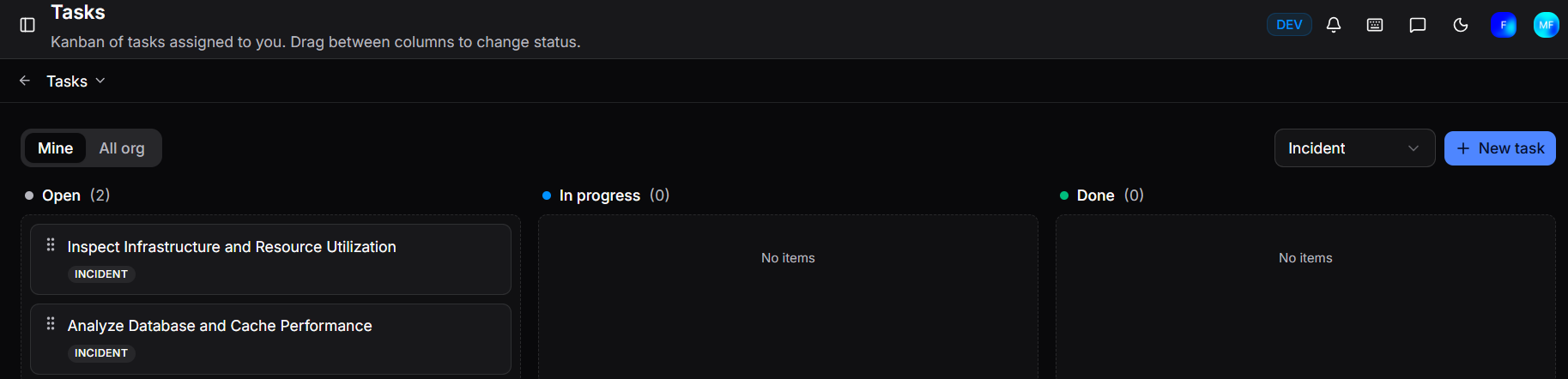
Tasks are organised into three columns:
| Column | Description |
|---|---|
| Open | Tasks not yet started |
| In progress | Tasks actively being worked on |
| Done | Completed tasks |
Drag a task card between columns to update its status.
Use the Mine / All org toggle to switch between your own tasks and all tasks across the organisation. The All org view gives leads and managers a full picture of what is in flight and where work is piling up.
Use the All types filter to narrow the board by task type - for example, to see only tasks linked to incidents or only standalone tasks.
Creating a task
Click + New task to create a standalone General task.
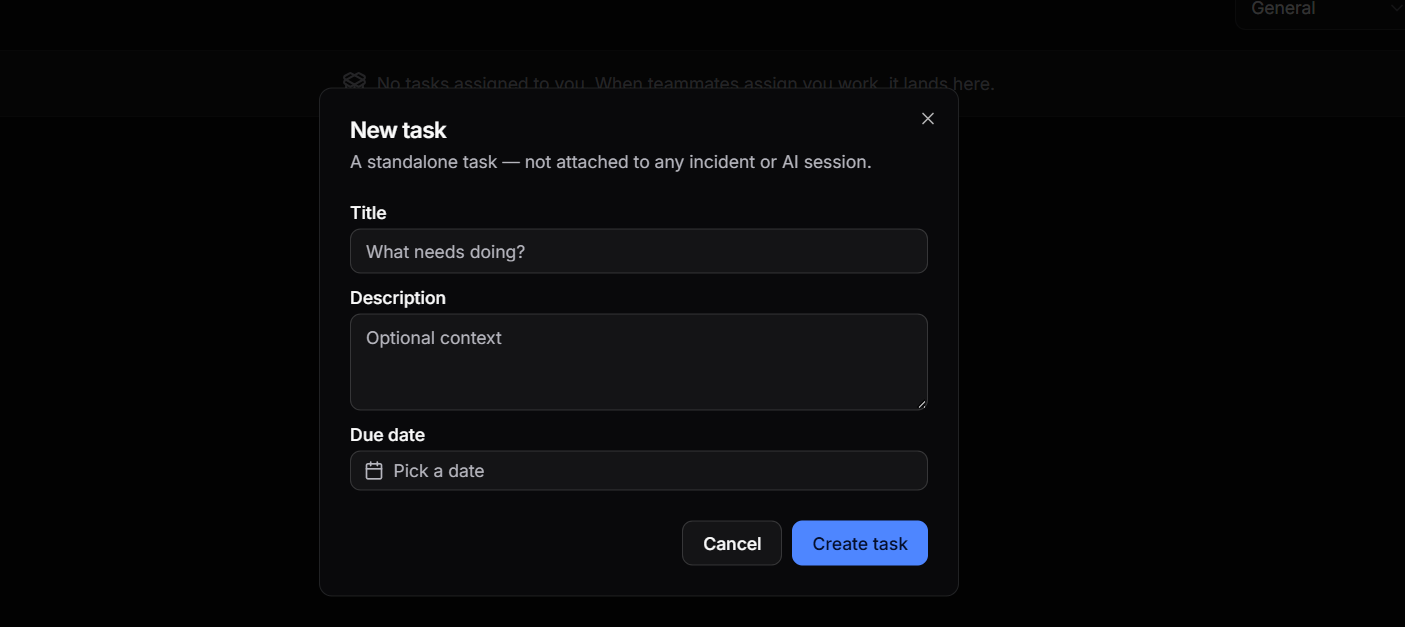
| Field | Description |
|---|---|
| Title | What needs doing |
| Description | Optional context |
| Due date | Optional deadline |
Click Create task to add it to the board.
From an incident
Tasks can also be created directly from the Tasks panel in the incident sidebar. These are automatically linked to that incident and appear as Incident-type tasks on the board.
Runbook steps can also be converted into incident tasks in one click from the incident sidebar - see Runbooks.
Assignments and notifications
Tasks can be assigned to any team member. When a task is assigned to you, you receive a notification. Assigned tasks from incidents and the Tasks board all appear together under the Mine view.
Need more help?
Contact support in the chat bubble and let us know how we can assist.