Getting started with Coworker
Onboarding
The more Coworker knows about you and your services, the better it filters the noise. A short six-step setup, shown the first time you open Coworker, tailors it to you. You can skip any step and still get a working Coworker - you'll just see a broader, less tailored view until you set your preferences.
Step 1: Introduction
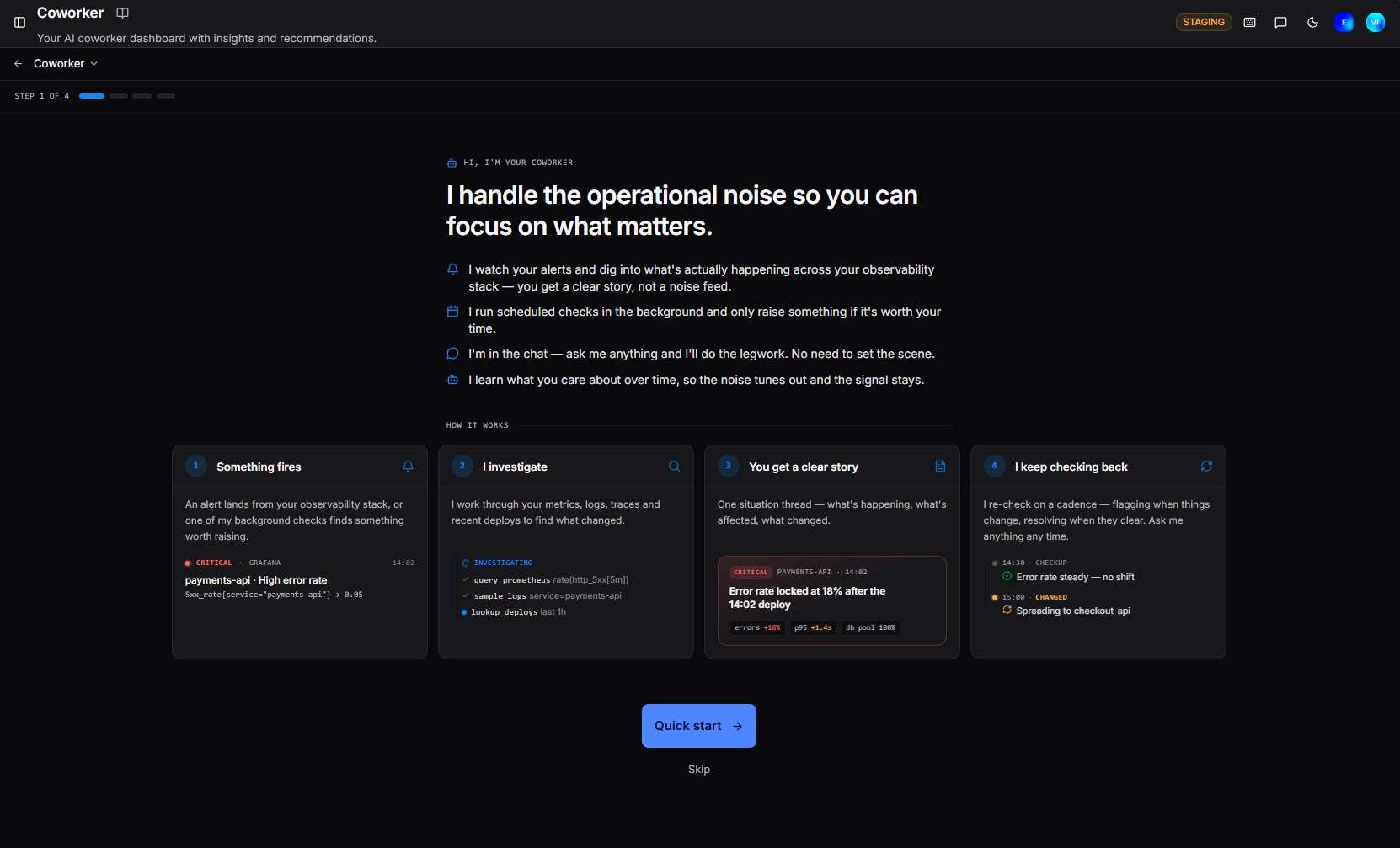
Step 1 introduces what Coworker does:
"I handle the operational noise so you can focus on what matters."
And how it helps:
- Watches your alerts and digs into what's actually happening across your observability stack, so you get a clear story rather than a noise feed
- Watches every service's health on its own and runs your scheduled checks, raising something only if it's worth your time
- Answers questions in the chat and does the legwork, with no need to set the scene
- Learns what you care about over time, so the noise tunes out and the signal stays
A How it works flow shows four cards: something fires (an alert lands, or Coworker spots a service's health drifting before anything fires), Coworker investigates, you get a clear story, and it keeps checking back. Click Quick start to begin, or Skip to go straight to the dashboard.
Step 2: Health screen
Coworker can watch every service's health automatically - no setup from you. This is Heartbeat, its always-on health screen:
"Once your services are cataloged, I watch each one's health signals every few minutes. When something drifts out of its normal range and stays there, I investigate and write it up, the same way I handle an alert."
If your services are already cataloged, this step shows what Heartbeat is already watching - for example "Already watching 127 signals across 16 services" - with the list of services covered. You can turn individual signals or services off at any time from the Heartbeat panel. Click Continue.
If nothing is cataloged yet, choose how to proceed:
- Catalog my services - discover your services from your telemetry and start health screening. It runs in the background, so you can carry on with setup and review what Coworker found on the Catalog page.
- Skip for now or Skip - move on without cataloging.
Step 3: Your role
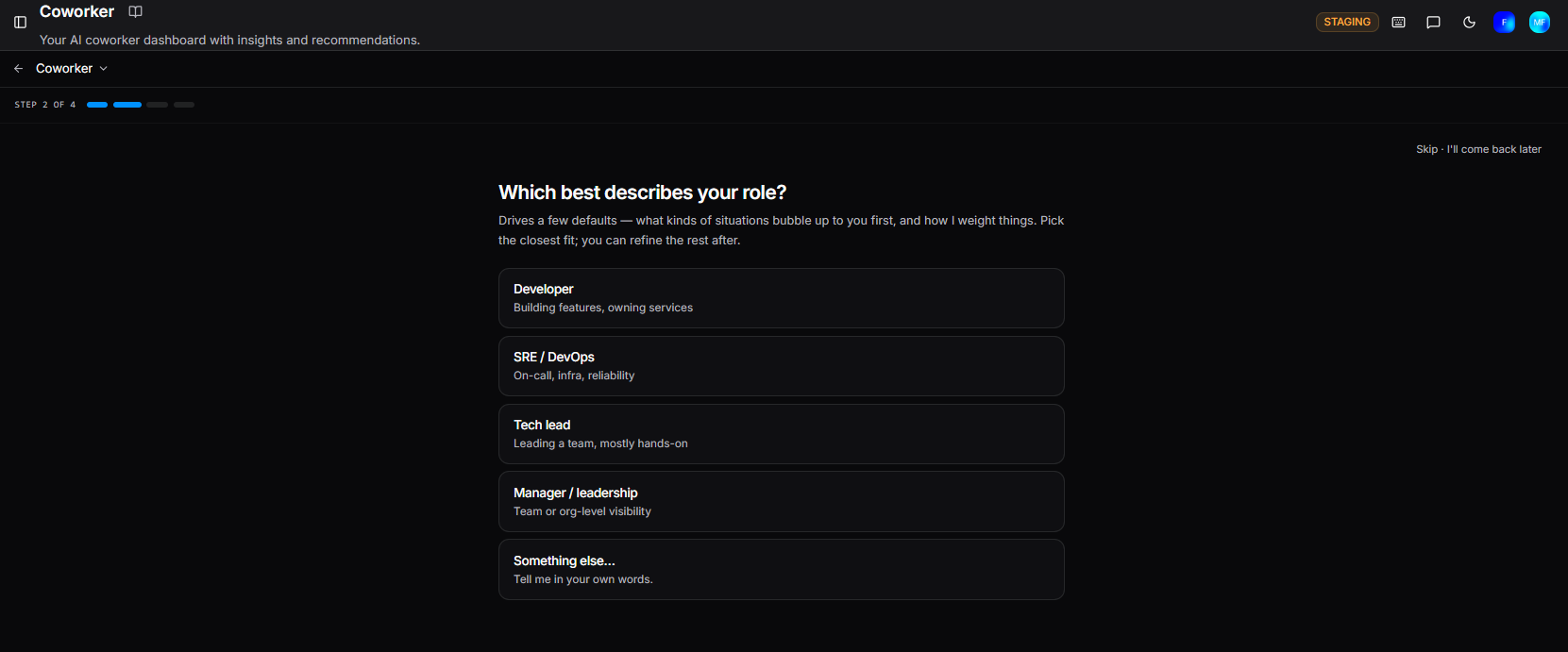
Coworker asks what you do. Pick as many roles as fit - this drives a few defaults, such as which kinds of situations surface to you first and how things are weighted:
| Role | Description |
|---|---|
| Developer | Building features, owning services |
| SRE / DevOps | On-call, infra, reliability |
| Tech lead | Leading a team |
| Manager / leadership | Team or org-level visibility |
| Something else… | Tell me in your own words |
Select Skip - I'll come back later to proceed without setting a role.
Step 4: What do you want me to help with?
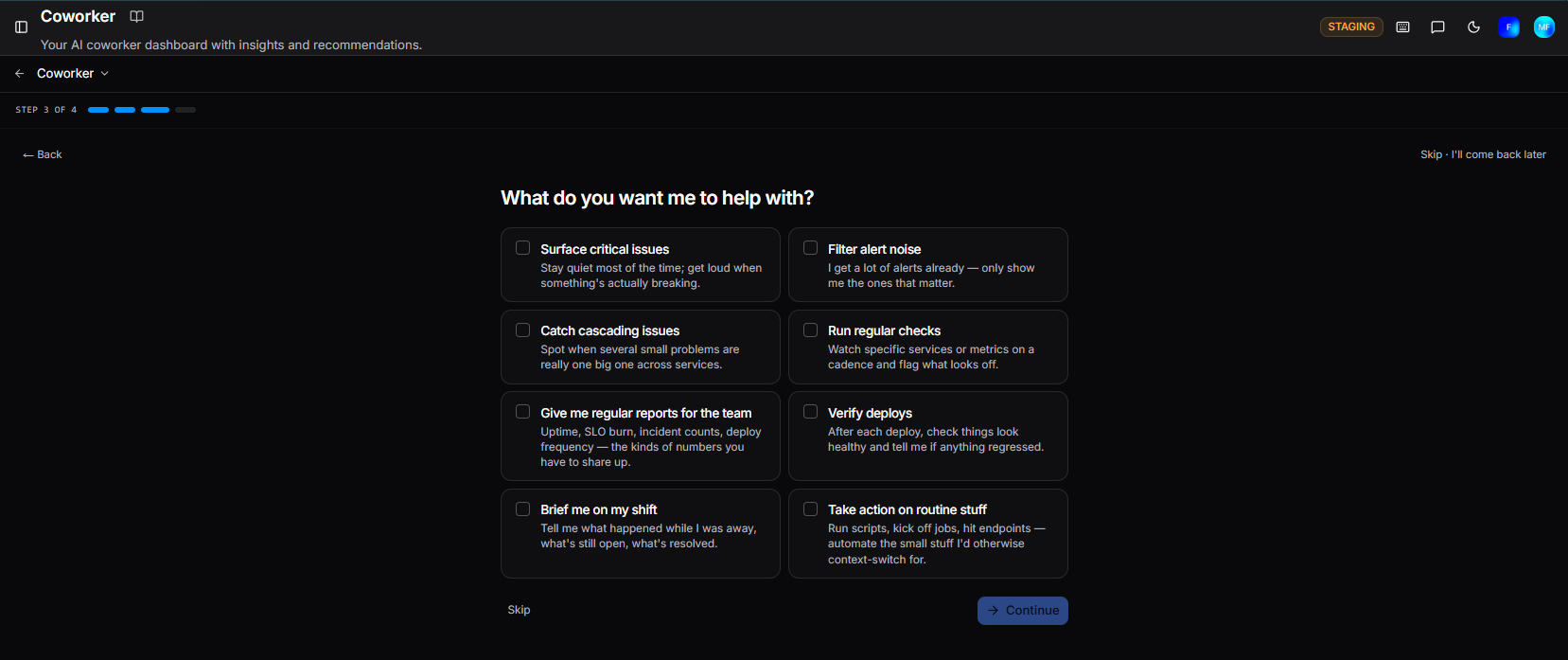
Select as many as apply:
| Option | Description |
|---|---|
| Surface critical issues | Quiet by default, loud when it matters |
| Filter alert noise | Only the alerts worth your attention |
| Catch cascading issues | Spot when small problems are one big one |
| Run regular checks | Watch services on a cadence |
| Report to the team | Uptime, SLO burn, incident counts |
| Verify deploys | Check health after each release |
| Brief me on my shift | What happened while you were away |
| Take action on routine stuff | Run scripts and jobs on your behalf |
Click Continue when done, or Skip to proceed without selecting any.
Step 5: Which of these matter most to you?
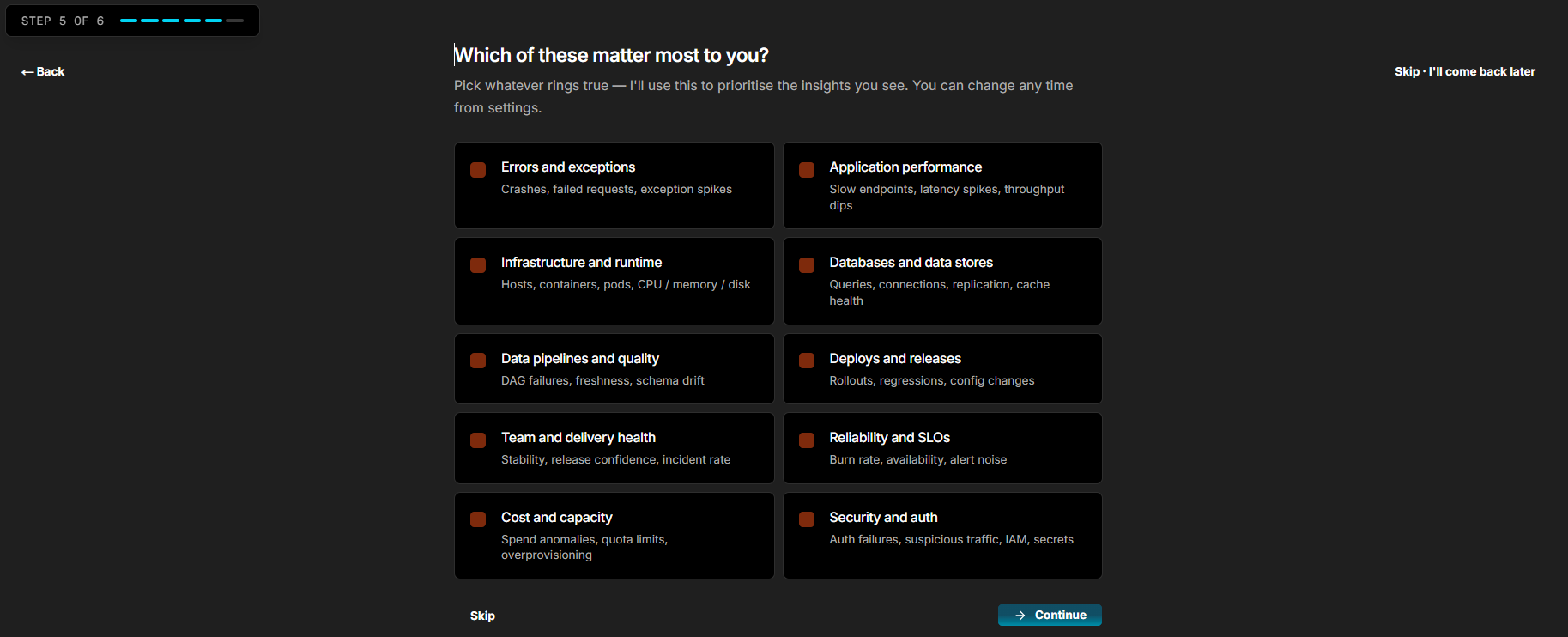
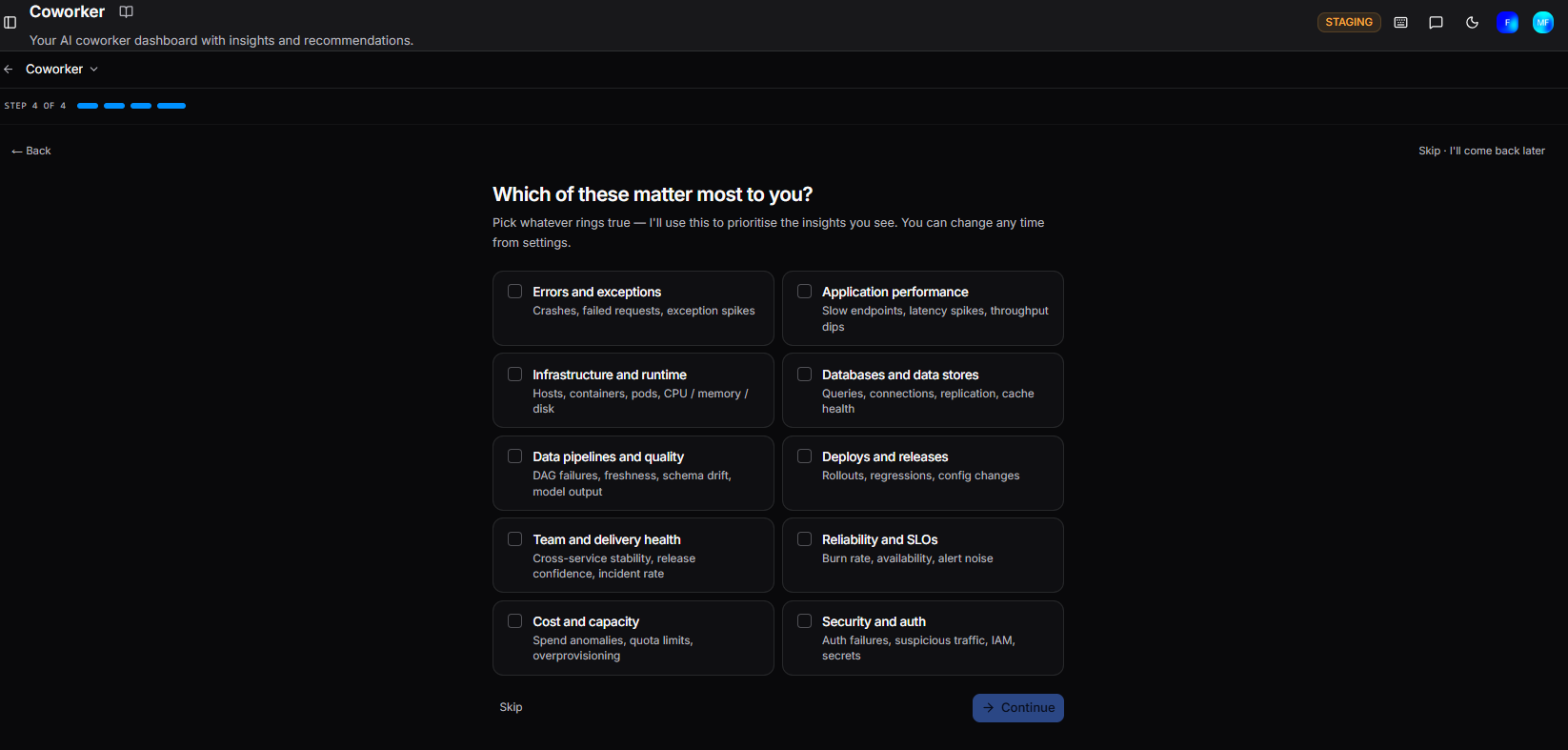
Select the domains you want Coworker to prioritize in your feed:
| Area | What it covers |
|---|---|
| Errors and exceptions | Crashes, failed requests, exception spikes |
| Application performance | Slow endpoints, latency spikes, throughput dips |
| Infrastructure and runtime | Hosts, containers, pods, CPU / memory / disk |
| Databases and data stores | Queries, connections, replication, cache health |
| Data pipelines and quality | DAG failures, freshness, schema drift, model output |
| Deploys and releases | Rollouts, regressions, config changes |
| Team and delivery health | Cross-service stability, release confidence, incident rate |
| Reliability and SLOs | Burn rate, availability, alert noise |
| Cost and capacity | Spend anomalies, quota limits, overprovisioning |
| Security and auth | Auth failures, suspicious traffic, IAM, secrets |
Select as many as apply. These can be updated at any time from Settings > Preferences.
Step 6: Which services do you want front and center?

Coworker asks which services to put front and center, so it can prioritize what reaches you first:
"Everything still gets monitored - this just decides what reaches you first, and what sits under the rest of the org. Skip if you'd rather not narrow by service. Either way, you can change it any time."
Choose how to proceed:
- Sure - pick the services to put front and center, so situations touching them are prioritized in your feed.
- Skip - finish onboarding without narrowing by service.
Configuring your view
Whether set during onboarding or later from Settings, three controls decide what appears in your Coworker feed:
| Setting | Description |
|---|---|
| Focus services | The specific services you own or care about, by name or glob pattern (e.g. payments-*). Situations touching these are prioritized in your feed. |
| Focus areas | The domains you want prioritized: Errors and exceptions, Application performance, Infrastructure and runtime, Databases and data stores, Data pipelines and quality, Deploys and releases, Team and delivery health, Reliability and SLOs, Cost and capacity, Security and auth. |
| Custom keywords | Any terms beyond the focus areas above - a library, technology, or feature name specific to your stack. A match nudges related situations into your feed. |
Feed filtering only
None of these change what Coworker investigates or raises across your organization - they only change what reaches your personal feed.
Settings
Open Settings from the Coworker dashboard for your preferences, check-in cadence, behavior, and budget controls. You don't need to set all this up front - sensible defaults are in place, and you can ask Coworker to adjust your preferences in any chat.
See Settings for full details.
Need more help?
Contact support in the chat bubble and let us know how we can assist.