Usage
Usage shows what Coworker has been doing and what it's costing, side by side - so you always see the operational work your AI Token spend funded, never spend in isolation. Open it from the top right of the Coworker dashboard; it has two tabs: Activity and AI Tokens.
Understanding OpsPilot AI Tokens
Your OpsPilot plan includes a monthly allowance of OpsPilot AI Tokens. These are the usage allowance for Coworker's AI-powered work. Every time Coworker investigates an alert, runs a scheduled check, analyses telemetry, generates a recommendation or answers a question in chat, it uses AI Tokens from your allowance.
Usage varies depending on the amount of context, telemetry and reasoning required. A simple chat question uses a small number of AI Tokens. A deeper investigation that reviews telemetry, prior findings, service context and generates recommended actions uses more.
What uses AI Tokens
| Source | Description |
|---|---|
| Chat | AI Tokens used by direct questions and conversations with Coworker |
| Coworker investigations | AI Tokens used when Coworker investigates alerts, situations, telemetry patterns or service behavior |
| Scheduled checks | AI Tokens used by recurring Coworker tasks, such as daily error checks, performance reviews or resource usage analysis |
| Recommendations | AI Tokens used to generate suggested fixes, explanations and next steps |
Activity tab
The Activity tab shows what Coworker has done over a selected time range. Use the Plan period selector in the top right to switch between plan years, and the Last 30 days / Last 90 days / Full period toggle to adjust the window within that period. A suggestions indicator (for example, 2 suggestions) in the top right opens the Optimization Suggestions panel.
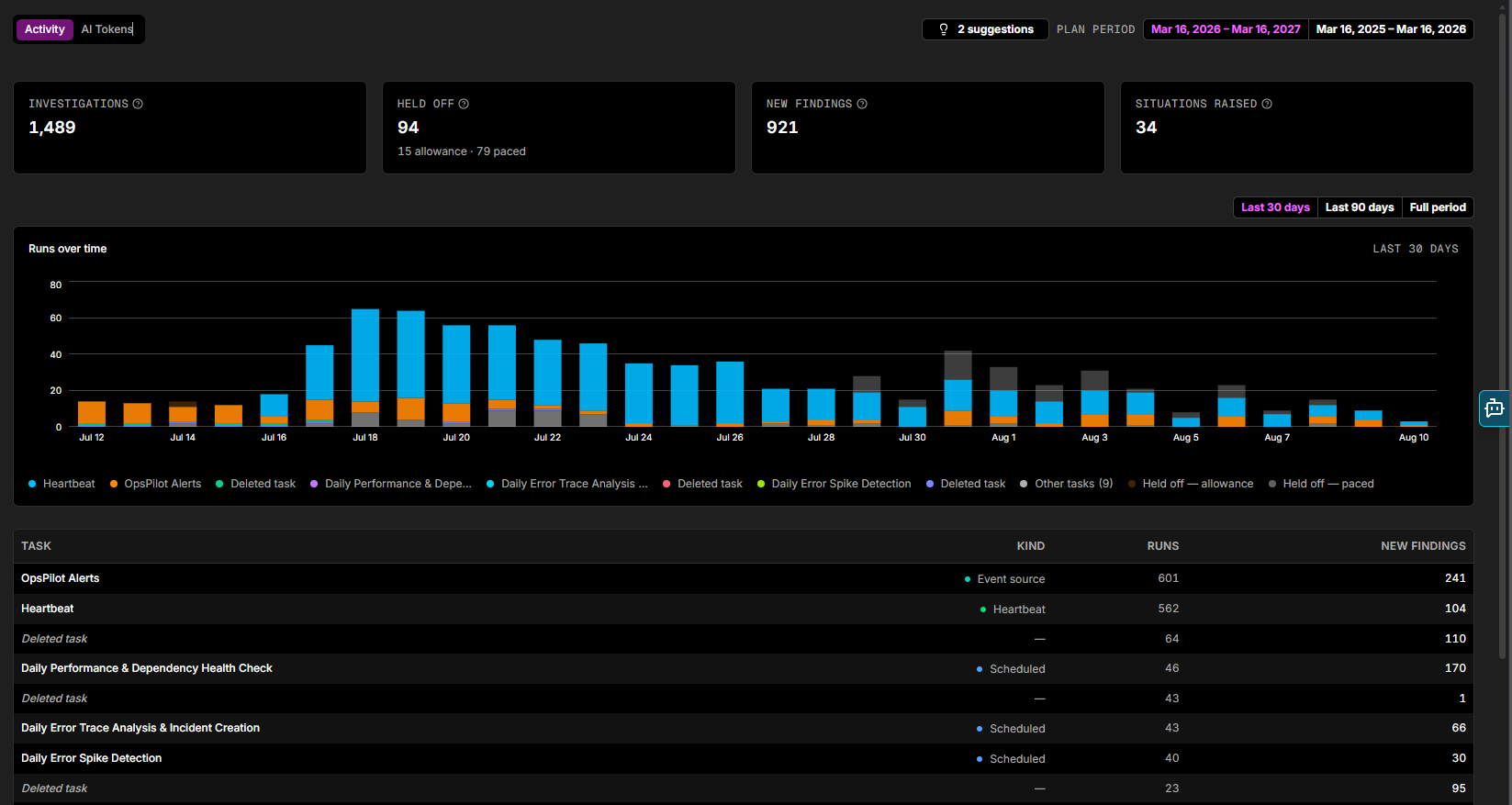
Four summary metrics are shown at the top:
| Metric | Description |
|---|---|
| Investigations | Number of investigations Coworker completed in the selected period |
| Held off | Investigations Coworker deferred rather than run, split into allowance (held back by your spend limits) and paced (held back by pacing rules such as cooldowns and repeat-alert limits) |
| New findings | Number of new findings generated across all investigations |
| Situations raised | Number of situations Coworker raised in the selected period |
A Runs over time chart stacks activity across the period, colored by task alongside the held-off categories (allowance and paced). The legend below the chart identifies each task and the held-off types; when there are many tasks, the smaller ones are grouped together as Other tasks (N).
The By task table breaks down activity per task:
| Column | Description |
|---|---|
| Task | The task name |
| Kind | The task type (Heartbeat, Scheduled, Monitoring, or Event source) |
| Runs | Number of executions in the selected period |
| New findings | Number of new findings generated by that task |
Tasks that have since been deleted still appear (shown as Deleted task with no kind) so their past activity stays counted for the period.
OpsPilot always shows the operational work Coworker delivered alongside AI Token usage, so you can see what your allowance funded. AI Token usage is never shown in isolation.
AI Tokens tab
The AI Tokens tab gives you full visibility into AI Token spend and the controls to manage it.
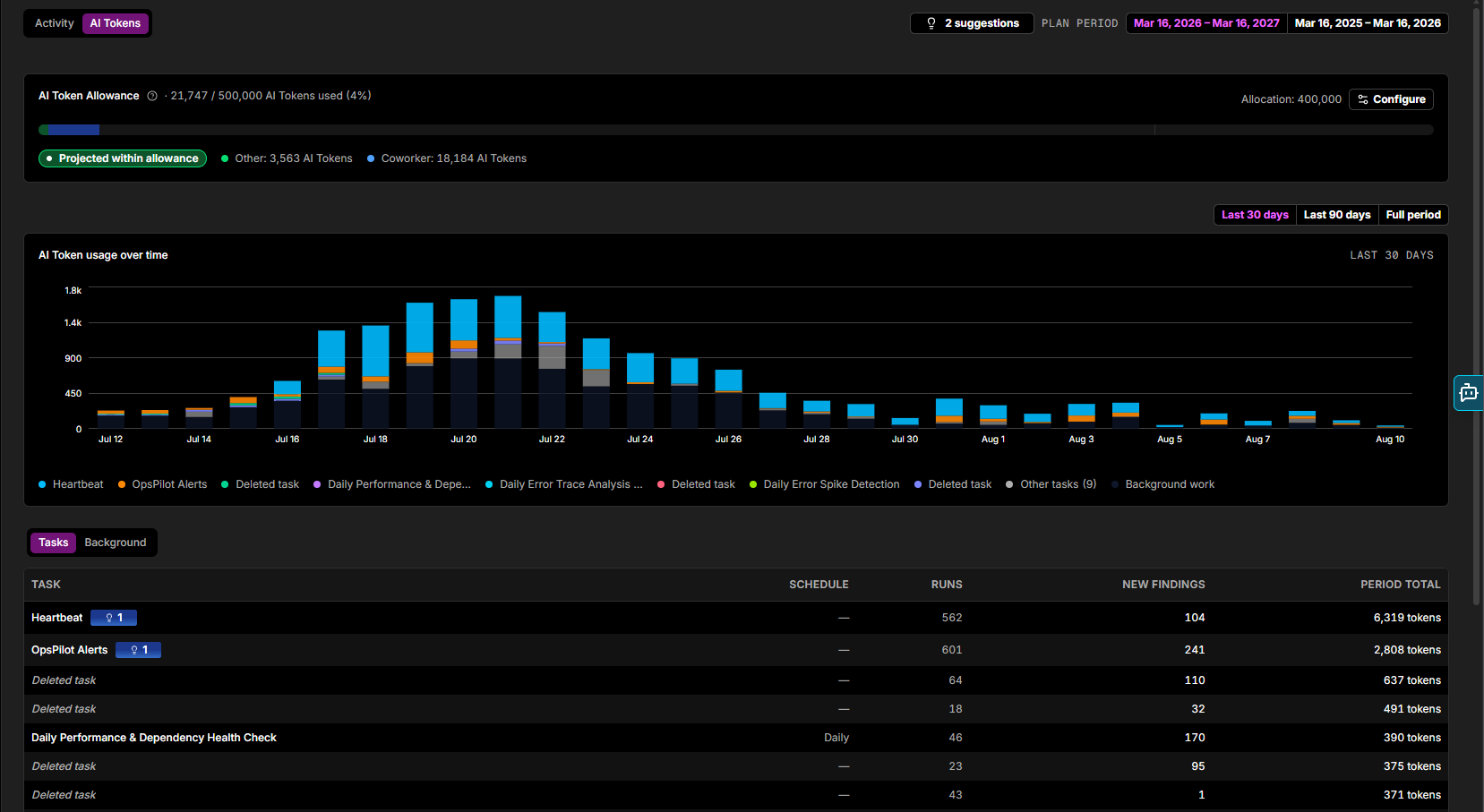
When Coworker spots a high-impact way to save tokens, it surfaces the headline suggestion as a banner at the top of the tab - for example, "54% of your token usage this period went on Heartbeat investigations" - with a one-click action such as Review signals. Open the full list from the suggestions indicator (lightbulb) - see Optimization Suggestions.
Tip
One of the most effective ways to reduce AI Token usage over time is simply to let tasks run. As task-specific memory builds up, Coworker re-uses context it already knows rather than fetching it fresh on every run, reducing usage by up to 50% in some cases.
AI Token Allowance
The AI Token Allowance bar at the top shows your current spend against your plan allowance (e.g. 94 / 20,000 AI Tokens used). The Allocation figure shows how much of your plan allowance is assigned to tasks (e.g. 16,000 - 80%). A Projected within allowance status confirms whether your current usage trajectory is on track.
Below the bar, a legend breaks down usage by source:
- Coworker: AI Tokens used by Coworker's task and investigation work
- Other: everything else, such as direct chat conversations
Click Configure to open Settings > Budget & cost, where you set how much Coworker can spend - your Monthly spend cap, whether On-demand usage is allowed past your plan allowance, and the Warning threshold. See Budget & cost for the full details.
AI Token usage over time
A bar chart showing AI Token consumption per day across the selected period. Use the Last 30 days / Last 90 days / Full period toggle to adjust the window. The chart legend identifies spend by task and includes a Background work category for AI Token usage from Coworker's continuous monitoring activity (situation re-checks, tidying, and debriefs) that runs outside of named tasks. When there are many tasks, the smaller ones are grouped together as Other tasks (N).
AI Token Breakdown
The AI Token Breakdown table has two sub-tabs:
Tasks - shows your named tasks. Each row shows:
| Column | Description |
|---|---|
| Task | The task name |
| Schedule | How often the task runs |
| Runs | Number of executions in the selected period |
| New findings | Findings generated by this task in the period |
| Period total | Total AI Tokens consumed by this task in the period |
A task with a pending optimization suggestion shows a suggestion badge (a lightbulb with a count) next to its name.
Tasks that have since been deleted still appear (shown as Deleted task) so their past spend stays counted for the period.
Background - shows AI Token usage from Coworker's continuous monitoring work that runs outside of named tasks. Each row shows the activity type, period total, and projected monthly cost:
| Activity | Description |
|---|---|
| Following up on situations | Re-checking open situations on a regular cadence |
| Writing your daily summary | Generating the digest of what Coworker handled |
| Triaging new alerts | Initial investigation of incoming alerts |
| Tidying the inbox | Consolidating, merging, and closing situations |
A Total row at the bottom sums the period total and projected monthly cost across all background activities.
Optimization Suggestions
Click the suggestions indicator (the lightbulb showing a count, for example 2 suggestions) to open the Optimisation suggestions panel - token-saving changes Coworker recommends, to review and apply the ones you want. Each suggestion shows a title, a plain-language explanation of the proposed change, and an estimated monthly AI Token saving (e.g. Est. save 45 tokens/mo). Click the chevron to expand the full detail, which includes:
- Why this suggestion - Coworker's reasoning, including the pattern it observed and the estimated reduction per run
- Instruction changes - the exact proposed instructions that would be applied, so you can review the change before accepting
From an expanded suggestion you can:
- Apply: apply the change immediately
- Dismiss: ignore it. Coworker won't keep pushing the same suggestion.
To apply every suggestion at once, click Apply all at the top of the panel.
Suggestions never come at the expense of monitoring quality. Coworker won't suggest anything that would reduce its ability to catch real problems. Where a task is already running efficiently, it will say so.
Toggle Auto-apply optimization suggestions to have Coworker automatically apply future suggestions as they are generated. This is off by default.
On-demand analysis
Click Analyse & Optimise to trigger an on-demand optimization review at any time. If no optimizations are needed, you'll see a Looking good! confirmation.
Need more help?
Contact support in the chat bubble and let us know how we can assist.