Coworker FAQ
Getting started
How do I get started with Coworker?
When you first open Coworker, a short six-step setup tailors it to you - your role, the services you own, and what you want it to focus on. The quickest way to get value is to enable OpsPilot Alerts, which connects Coworker to your existing alert rules so it automatically investigates whenever one fires.
Can I have more than one Coworker?
No. Each user has one Coworker. Your feed and preferences are personal to you, but tasks and investigations are shared across your organization - everyone on the team can see what Coworker has raised.
Can my team share a Coworker?
Tasks and investigations are already shared across your organization. Use the Just for me dropdown at the top of the dashboard to toggle between your personalized feed and the full team view.
Can I restart the setup?
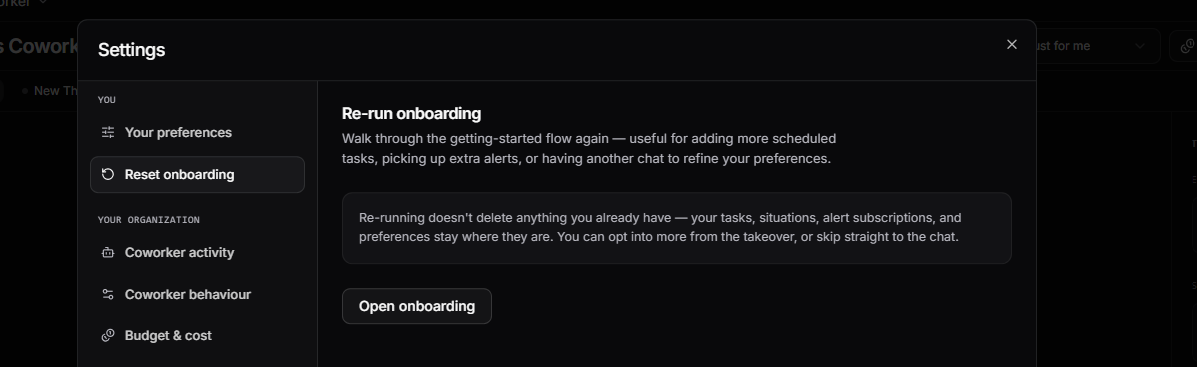
Yes. Open Settings from the Coworker menu, go to the Preferences tab, and click Open onboarding under Re-run onboarding to walk through the setup flow again. Re-running does not delete anything you already have.
Tasks
How many tasks should I create?
Start with one or two scheduled tasks covering your most critical services, and enable OpsPilot Alerts. Add more tasks over time as you identify gaps. Too many tasks running frequently can increase AI Token usage.
How often should I run scheduled tasks?
Daily is the most common cadence and a good starting point. Every 6 hours works well for services that need closer attention. Weekly is often enough for higher-level system reviews.
If you find yourself wanting very frequent checks on a specific pattern, a monitoring task is usually a better fit than a high-frequency scheduled task. If something needs near-real-time response, connecting an alert rule via OpsPilot Alerts will be more effective and much cheaper.
Learn more
Why isn't my task finding anything?
It may take a few runs for Coworker to build enough context to surface meaningful insights. If a task consistently finds nothing, consider adjusting the description to be more specific about what you want it to investigate.
What is the difference between a scheduled task and a monitoring task?
A scheduled task runs on a recurring interval and produces a general report of findings. A monitoring task is focused on a specific pattern or issue (created from an insight) and tracks whether that pattern is improving, worsening, or stable over time.
Heartbeat
What is Heartbeat and how is it different from alerts?
Heartbeat is Coworker's always-on health screen. Once your services are cataloged, it learns what "normal" looks like for each one and re-checks those signals every few minutes - no alert rules to write. When a signal drifts out of its normal range and stays there, Coworker investigates on its own and writes up what it found.
Unlike a traditional alert, Heartbeat doesn't just fire a notification - it investigates. It's also private to Coworker: it never creates Grafana or Alertmanager alerts, and won't page your on-call.
Learn more
Insights
What is the difference between an insight and a situation?
An insight is one atomic finding - a single observation, anomaly, or error pattern Coworker recorded while investigating. A situation groups related insights into one coherent story with a severity, summary, and recommended actions. Insights are the raw layer; situations are what you triage. You can browse every insight on the Insights page, while situations surface in your home feed.
What is the difference between Resolved and Dismissed?
When you close a situation with Set status, Resolved means it's handled - you've taken action and the problem is dealt with. Dismissed closes it as not a real problem, or not relevant to you. Either way Coworker asks for a quick reason, which also teaches it what not to raise next time.
Learn more
Why am I seeing the same insight repeatedly?
If the underlying issue hasn't been fixed, Coworker will continue to surface it. The occurrence history on each insight shows whether it is a recurring pattern. Use Watch on the insight to create a monitoring task that tracks whether the issue improves.
Learn more
How do I change what types of insights I see?
Open Settings > Preferences and adjust Feed relevance - your role, focus services, focus areas (the domains Coworker prioritizes), and custom keywords. You can also just ask Coworker to adjust these from any chat. This changes what reaches your feed, not what Coworker investigates across your organization.
Learn more
Situations
What do the situation statuses mean?
A situation has three statuses: Active (a live problem), Watching (Coworker is keeping an eye on it rather than pressing you about it), and Resolved (handled). You can also dismiss one that was never a real problem. Status is separate from severity (Critical, Warning, or Info) - a Critical can sit in Watching, and a Warning can be Active.
Learn more
How do I hand a situation to a teammate?
Open the situation and click Assign. Choose I'll take this to assign it to yourself, or search members and pick a teammate.
Learn more
Notifications
Does Coworker notify me when it finds something?
Not on its own. Coworker raises situations in your feed, but it does not contact you outside OpsPilot unless you connect Slack.
Can I get situations in Slack?
Yes. Install the Slack integration, invite the bot to the channel you want situations in, then enable situation notifications using the slash command in the setup message.
You can also do the whole thing from the Slack integration page in OpsPilot, which walks you through the steps after you install it.
How will I know about a situation when OpsPilot isn't open?
Slack is the way to be told. You can also ask OpsPilot MCP about currently active situations from your editor or AI assistant, without opening OpsPilot at all.
How quickly will I hear about a situation?
That depends on severity:
| Severity | Typical time from the triggering event |
|---|---|
| Critical | 3-5 minutes |
| Everything else | Up to the triage cadence - one hour by default |
Coworker starts investigating the moment an alert fires, and the investigation itself takes roughly 30 seconds to 2 minutes. Its findings are then picked up at the next triage, which runs on a cadence you set in account settings. Critical findings skip that wait: Coworker triggers triage immediately rather than holding them for the next cycle.
Once a situation exists, Slack delivery is near-instant - OpsPilot checks for events to post every five seconds.
Can I be notified only about critical situations?
Yes. Choose which severities are posted to Slack.
A situation that is later raised to critical is posted at that point, even if its earlier severity was filtered out, so filtering to critical does not mean missing something that becomes critical. Escalations always notify.
Are browser or desktop notifications supported?
No. Coworker uses the same notification system as the rest of OpsPilot, which has no browser or desktop notifications.
Why does Coworker raise so few situations?
By design. Coworker investigates far more than it reports - alerts, anomalies and other signals that turn out not to indicate a real problem are recorded quietly as insights rather than raised as situations.
It raises a situation for recurring issues, customer-facing problems, clear faults, and anything you have explicitly asked it to watch through a task. Critical is reserved for major faults and things affecting your customers.
You can also teach it. If it raises something you don't consider important, tell it - Coworker can remember that and either stop raising it, or raise it at a lower severity.
Expect more noise in the first few weeks. Coworker surfaces pre-existing issues in your environment, and is still learning what your team cares about from your conversations and from what you dismiss.
Costs
What are OpsPilot AI Tokens?
OpsPilot AI Tokens are the usage allowance for Coworker's AI-powered work, including chat, alert investigations, scheduled checks, telemetry analysis and recommendations. Your plan includes a fixed monthly allowance, and OpsPilot gives you clear usage visibility, forecasting and controls so there are no surprises.
Learn more
What uses AI Tokens?
AI Tokens are used whenever Coworker performs AI-powered work:
- Answering questions in chat
- Investigating alerts and situations
- Triaging and performing background checkups on open situations
- Analyzing telemetry and service behavior
- Running scheduled checks
- Generating recommendations, suggested fixes and debriefs
- Updating situations and producing findings
Does every Coworker action use the same number of AI Tokens?
No. Usage depends on the amount of telemetry, context and reasoning required. A simple chat question typically uses fewer AI Tokens than a deeper investigation that reviews metrics, logs, prior findings and service context before generating a recommendation.
Can I forecast my AI Token usage?
Yes. The Projected monthly metric in the Usage view estimates your end-of-month AI Token consumption based on current usage patterns, so you can see whether you are on track to stay within your plan allowance.
Learn more
How much does Coworker cost to run?
Cost depends on several factors:
- How many tasks you have and how frequently they run
- The model tier selected (Thorough uses more AI Tokens than Efficient)
- The number of events received from your event sources - the more alerts that fire, the more investigations Coworker runs
- The number of open situations - more open situations means more background checkups running continuously
You can set a monthly task allowance to control spend, with configurable warning and halt thresholds to prevent overruns.
Learn more
How do I reduce AI Token usage?
- Review Optimization Suggestions in the AI Tokens tab; these appear automatically after a task has run a few times and Coworker detects ways it could be improved
- Apply an optimization suggestion to apply the recommended change immediately
- Click Analyse & Optimise to trigger an on-demand optimization review at any time
- Switch high-volume or routine tasks to the Efficient model tier
- Reduce the frequency of scheduled tasks that run often but find little
- Review the AI Token Breakdown table to identify the most expensive tasks and consolidate or adjust them
- If noisy alerts are driving up costs, consider disabling Coworker from investigating them. Click on the OpsPilot Alerts event source in the sidebar and sort by Most events to see which alert rules are firing most frequently - those are the best candidates to review or exclude
What happens when I reach my task allowance?
Coworker will stop running tasks once spend reaches the Halt threshold, which by default is set to 100% of your task allowance. You can lower this threshold to stop tasks earlier and protect your allowance. A separate Warning threshold notifies you before the halt is reached.
Learn more
Can I get warned before hitting my allowance limit?
Yes. The Warning threshold in Settings > Budget & cost triggers a notification when your spend reaches a set percentage of your task allowance (e.g. 80%). This gives you time to adjust tasks or increase your allowance before tasks are halted.
Learn more
How do I accept or dismiss an optimization suggestion?
Open the AI Tokens tab in Usage and scroll to Optimization Suggestions. Expand any suggestion to see the reasoning under Why this suggestion and the proposed change under Instruction changes. Click Apply to apply it immediately, or Dismiss to ignore it.
Learn more
What is the difference between Thorough and Efficient model tiers?
Thorough handles any task and is more capable. Use it for critical alerts and complex investigations where depth matters. Efficient is suited to simpler, focused tasks and costs less. Use it for routine or high-volume tasks to keep spend down. You can set the model tier per task or per event source.
Learn more
Why use AI Tokens instead of unlimited AI?
AI-powered investigations consume compute and reasoning resources. OpsPilot AI Tokens give your team a predictable, fixed allowance for Coworker's work, with full visibility into what was used and what it delivered. This keeps AI usage transparent and controllable for both teams and budgets.
Does creating my catalog use AI Tokens?
No - creating your catalog for the first time is funded by OpsPilot as part of getting you set up, so it does not use your AI Token allowance. Catalog audits you run manually afterwards, to add new services or refresh entries, do use your allowance.
Learn more
Memory
How long does it take for Coworker to become useful?
Coworker starts providing value immediately, but becomes noticeably smarter after a few days of running tasks. As it builds memory about your services and patterns, its insights become more relevant and its task analysis more accurate.
Can I clear Coworker's memory?
Please contact support if you need to reset Coworker's memory.
Privacy and data
What data does Coworker have access to?
Coworker has access to the observability data in your OpsPilot account: metrics, logs, traces, and alert rules. It does not have access to data outside your organization's account.
Does Coworker read our Slack conversations?
By default, almost nothing. Connecting the Slack integration does not put Coworker in your conversations:
- When you @-mention OpsPilot, it reads the recent message history in that channel for context. It stores only your message - not the surrounding messages it used as context.
- When you reply in the thread of a situation it posted, those replies become context for its next check-up on that situation. Coworker says so explicitly in the thread each time.
It sees nothing else in your Slack.
Turning on passive or active listening for a channel changes that deliberately: every message in that channel is sent to Coworker, both as context for investigations and to learn from. In active mode it will also investigate things it can help with and reply on its own.
Need more help?
Contact support in the chat bubble and let us know how we can assist.