Manage tasks
The Tasks page is one place to see and control everything Coworker runs - pause a noisy task, trigger one on demand, or check when each last fired - without hunting through the feed.
Navigate to Coworker > Tasks to open it, or click All on the Tasks panel of the Coworker dashboard.
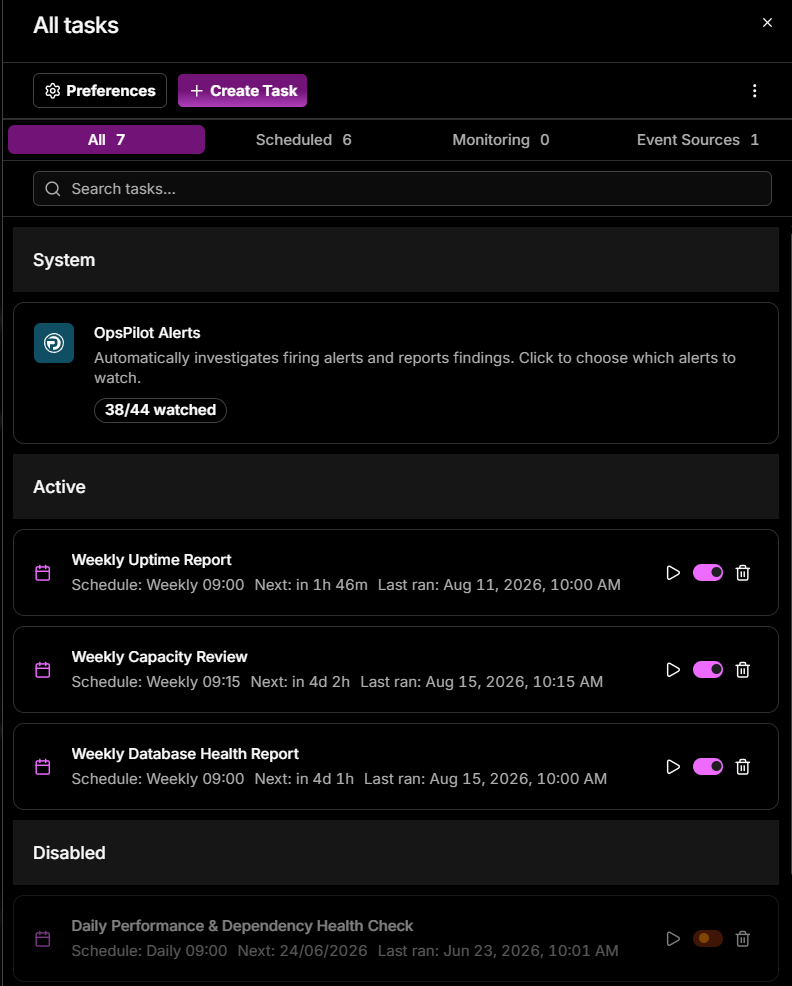
The Tasks page
- Click Preferences to open Coworker Preferences (see Preferences), or + Create Task to create a new task. Disable all turns off every task at once.
- Use the filter dropdown at the right of the search bar to narrow by category - it shows the total alongside, such as All 12.
- Search tasks by name using the search bar.
- The System section shows built-in tasks such as OpsPilot Alerts, with a badge showing the current state (e.g. No alerts yet if none are connected, or a watch count such as 38/44 watched once alerts are enabled).
- The Active section lists your enabled tasks with their schedule, next run time, and last run date. Each task has a Run button to trigger it immediately, a toggle to disable it, and a delete button.
- The Disabled section lists tasks that have been turned off. They retain their configuration and can be re-enabled at any time using the toggle.
Preferences
Click Preferences on the Tasks page to open Coworker Preferences, which controls how tasks generate reports for your organization.
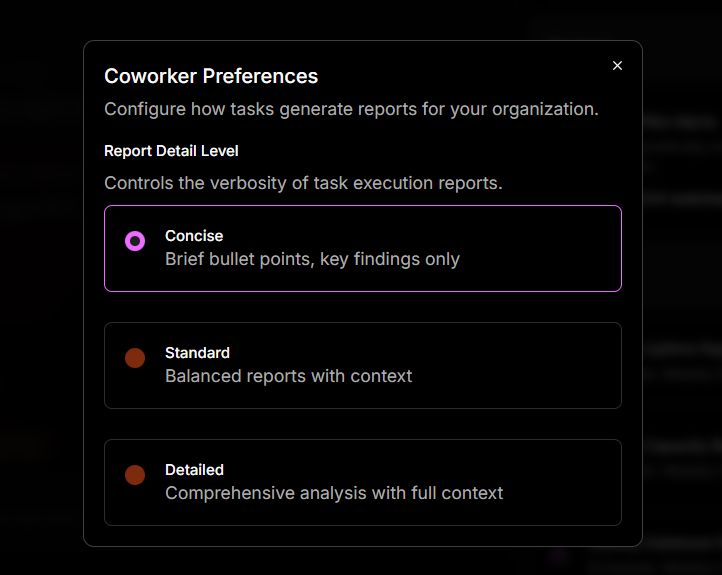
Its one setting, Report Detail Level, sets the verbosity of task execution reports - Concise, Standard, or Detailed. This is the same organization-wide setting as Report detail in the Behavior tab, where each level is described in full.
Need more help?
Contact support in the chat bubble and let us know how we can assist.