Scheduled tasks
Scheduled tasks are how Coworker keeps watch so you don't have to - running a check on the cadence you choose and staying quiet unless there's something worth telling you. They're the core of Coworker's continuous analysis. Choose any interval - hourly, daily, weekly, monthly, or custom - and each run produces a report summarizing what Coworker found. Scheduled tasks run until you turn them off.
Run any scheduled task on-demand with the Run now button, and view the full execution history to see what it found on each run.
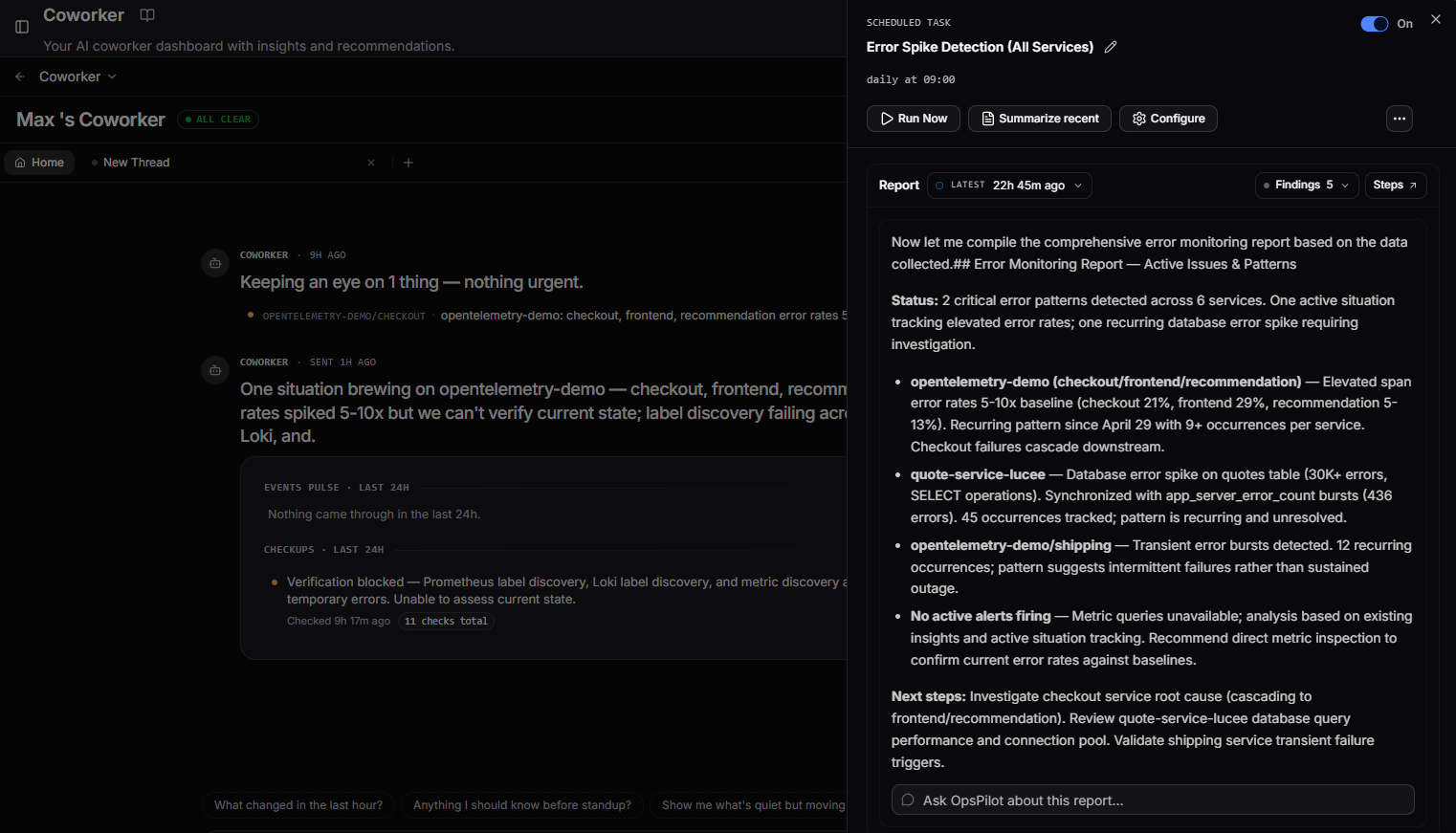
Each run produces the report you set the task up for and also surfaces anything else worth flagging - see What every task run does.
Schedules run in UTC
Coworker works in UTC. Ask for a check at 9am and it runs at 9am UTC, whatever your own time zone.
Say which time zone you mean and Coworker converts it - run at 9am Pacific becomes 2am UTC. If a task is running at a time you did not expect, this is usually why.
Running and reviewing a task
Open a scheduled task to see its details and history. Alongside the On/Off toggle you can:
- Run Now - trigger the task immediately instead of waiting for the next scheduled run
- Summarize recent - get a quick summary of its recent runs
- Configure - edit its description, schedule, and settings
The Report panel shows the latest run, with a dropdown to browse previous runs (e.g. Latest - 5h 25m ago) and a Steps button to see the steps Coworker took to produce it. The Ask OpsPilot about this report box lets you ask follow-up questions with the full report already in context.
Example
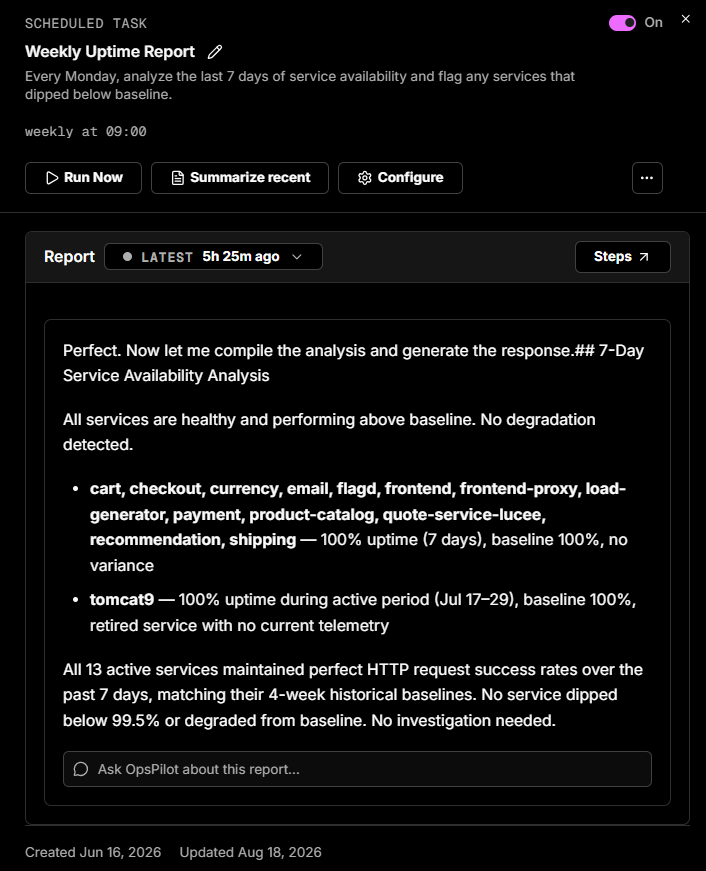
A task described as "Every Monday, analyze the last 7 days of service availability and flag any services that dipped below baseline", scheduled weekly at 09:00, produces a report like this:
7-Day Service Availability Analysis
All services are healthy and performing above baseline. No degradation detected. All 13 active services maintained perfect HTTP request success rates over the past 7 days, matching their 4-week historical baselines. No service dipped below 99.5% or degraded from baseline. No investigation needed.
When everything is healthy, the report simply confirms it - Coworker stays quiet unless there's something worth telling you.
Need more help?
Contact support in the chat bubble and let us know how we can assist.