Background activity
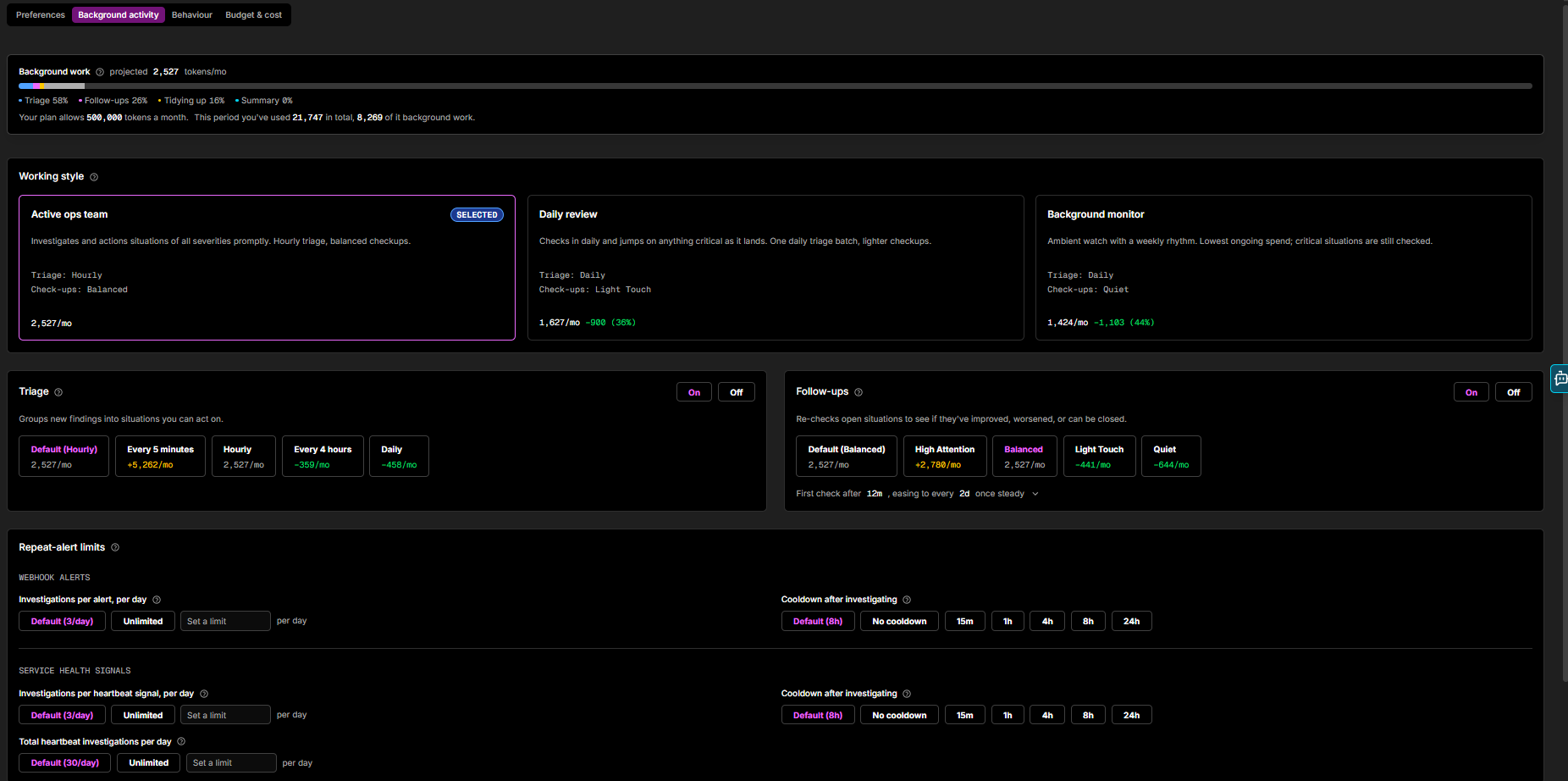
The Background activity tab controls the work Coworker does on its own - grouping new findings, re-checking open situations, and how often each runs. Turning this work down, or off, is the main lever for reducing ongoing AI Token spend without losing coverage of critical situations.
Background work
The meter at the top projects how many AI Tokens your current background settings will use per month, broken down across Follow-ups, Tidying up, Triage, and Summary. Below it you can see your plan allowance and this period's usage - both the total used and the portion spent on background work - so you can gauge the impact of a change before you commit to it.
Working style
Working style presets set your triage frequency and check-up cadence together, so you can pick a rhythm in one click rather than tuning each control by hand:
| Preset | Behaviour | Triage | Check-ups |
|---|---|---|---|
| Active ops team | Investigates and actions situations of all severities promptly | Hourly | Balanced |
| Daily review | Checks in daily and jumps on anything critical as it lands. One daily triage batch, lighter checkups | Daily | Light Touch |
| Background monitor | Ambient watch with a weekly rhythm. Lowest ongoing spend; critical situations are still checked | Daily | Quiet |
Each preset - and each individual Triage and Follow-ups option - shows its projected monthly cost and the saving or increase against your current setting (e.g. 1,408/mo - 674 (32%)), so you can compare before choosing. Selecting a preset fills in the Triage and Follow-ups controls below. You can still override either one individually afterwards.
Triage
Triage groups new findings into situations you can act on. Use the On / Off toggle to pause it - while paused, findings keep accumulating and are swept up the next time you turn it back on.
Frequency options: Every 5 minutes, Hourly (default), Every 4 hours, or Daily.
Follow-ups
Follow-ups re-check open situations to see whether they have improved, worsened, or can be closed. Use the On / Off toggle to pause them - while paused, open situations are not re-checked and none will close on their own until you turn this back on.
Cadence options: High Attention, Balanced (default), Light Touch, or Quiet. Each mode eases off over time - the panel shows the resulting schedule, for example "First check after 12m, easing to every 2d once steady."
Repeat-alert limits
These limits stop Coworker from repeatedly investigating the same signal and running up spend. They are split into two groups.
Webhook alerts
| Control | Description |
|---|---|
| Investigations per alert, per day | How many times Coworker will investigate a single alert in a day: 3/day (default), Unlimited, or a custom limit you set |
| Cooldown after investigating | How long to wait before investigating the same alert again: 8h (default), No cooldown, 15m, 1h, 4h, 8h, or 24h |
Service health signals
These apply to Heartbeat signals - the silent, catalog-based health checks Coworker runs in the background:
| Control | Description |
|---|---|
| Investigations per heartbeat signal, per day | How many times Coworker will investigate a single heartbeat signal in a day: 3/day (default), Unlimited, or a custom limit |
| Cooldown after investigating | How long to wait before investigating the same heartbeat signal again: 8h (default), No cooldown, 15m, 1h, 4h, 8h, or 24h |
| Total heartbeat investigations per day | A cap on heartbeat investigations across all signals combined: 30/day (default), Unlimited, or a custom limit |
Summary
Controls how often the standup line on your home page is rewritten. Options: Every 6h, Every 12h, or Every 24h.
Need more help?
Contact support in the chat bubble and let us know how we can assist.