Insights
Insights are the core of Coworker - every observation, anomaly, and error pattern it records while investigating. Situations are the curated stories Coworker builds from them and surfaces in your feed; the Insights page is the complete, unfiltered layer underneath.
Come here when you want the full picture rather than only what Coworker chose to raise: browse everything it has noticed, filter to a specific service or category, catch patterns before they escalate into a situation, and see how often each has recurred. It's the ground truth of what Coworker has seen.
Navigate to Coworker > Insights to open it.
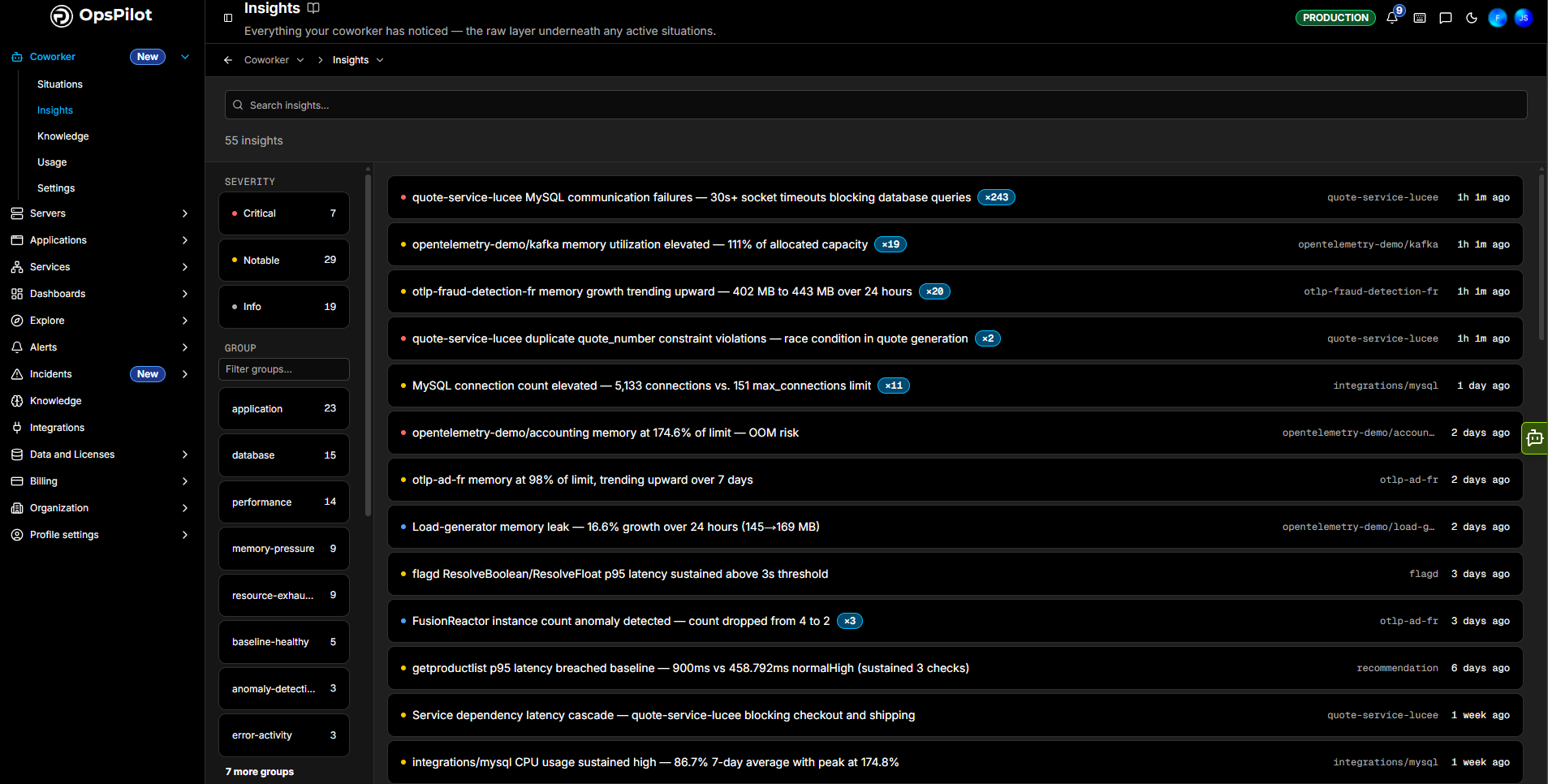
The header shows the total insight count, and the Search insights box finds one by keyword. The filter rails on the left narrow the list by severity, group, age, and service.
Filtering
A filter bar runs across the top of the list, with the number of matching insights shown beneath it. Alongside the filters described below, it offers:
| Control | What it does |
|---|---|
| Search insights | Find an insight by its title |
| Status | Narrow to a state such as Unresolved |
| Not in a situation | Show only insights Coworker recorded without raising a situation from them - the quiet majority of what it finds |
| Sort | Order the list, Newest first by default |
| Clear all | Drop every filter at once |
Arriving from Help me see more on the Coworker dashboard lands you here with the filters already set, so you see that slice rather than everything.
Category
Insights are sorted into broad categories. Pick one to show only its insights, or Any category for all of them:
| Category | What it holds |
|---|---|
| Errors | Things failing |
| Performance | Things degrading |
| Points of interest | Things worth knowing about that are not faults |
| Coverage gaps | Things Coworker cannot see - a service not shipping telemetry, a metric it expected and is not getting |
Coverage gaps is what the dashboard's Help me see more panel is showing you. These are worth clearing first: everything else Coworker does depends on what reaches it.
Severity
Each insight is ranked by severity - Critical, Notable, or Info, from most to least important. Select a severity to show only insights at that level; the count beside each shows how many insights it contains.
Group
Insights are also grouped by category - for example application, database, performance, memory-pressure, resource-exhaustion, baseline-healthy, anomaly-detection, and error-activity. Use Filter groups to find a group by name, then select one to show only its insights. The count beside each group shows how many insights it holds.
Age
Filter by how recently an insight was last seen - Last 24h, Last 7 days, or Last 30 days. The count beside each shows how many insights fall within that window.
Service
Filter to a specific affected service. Use Filter services to find one by name, then select it to show only that service's insights. The count beside each shows how many insights it has.
The insight list
Each row shows:
- A severity dot - Critical, Notable, or Info
- The insight title - a one-line summary of what Coworker found
- A count badge (for example
×4) - how many times the insight has occurred (its recurrence count) - The affected service or group
- When it was last seen
Click any row to open the insight in full.
Insight detail
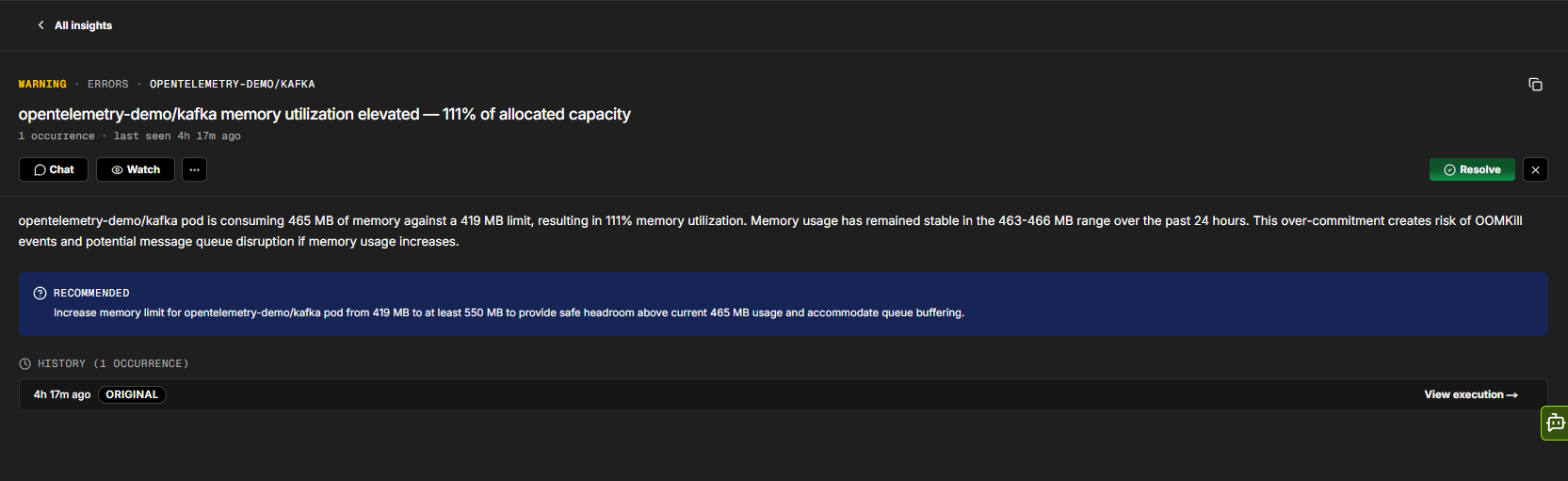
Opening an insight shows the full write-up:
- Header - the severity, category, and affected service, plus the title, occurrence count, when it was last seen, and tags such as the service name or
observability-gap - Part of - if the insight belongs to a situation, a banner links through to that situation
- Description - what Coworker found, with root-cause detail
- Recommended - concrete next steps Coworker suggests, often linking to the documentation for whatever it is asking you to set up
- Evidence - the supporting signals behind the finding. These can be log lines, exceptions and transaction IDs, or metric series shown as charts, each with Open in Explore to take it further
- History - each occurrence of the insight over time. Click View execution to see the investigation run that produced it
Acting on an insight
| Action | Description |
|---|---|
| Chat | Open a free-form conversation about the insight, with its full context already loaded (see below) |
| Ask | Put one of four preset questions to Coworker - Is this still an issue?, Investigate root cause, Create a ticket, or Suggest a fix |
| Watch | Set up a recurring check on the insight - opens the Watch This Insight dialog (see below) |
| Resolve | Mark the insight resolved |
| ... | More actions: Hide similar (stop surfacing insights like this one) and Not right (tell Coworker the insight is off the mark, so it learns) |
| ✕ | Close the detail and return to the list |
Chatting about an insight
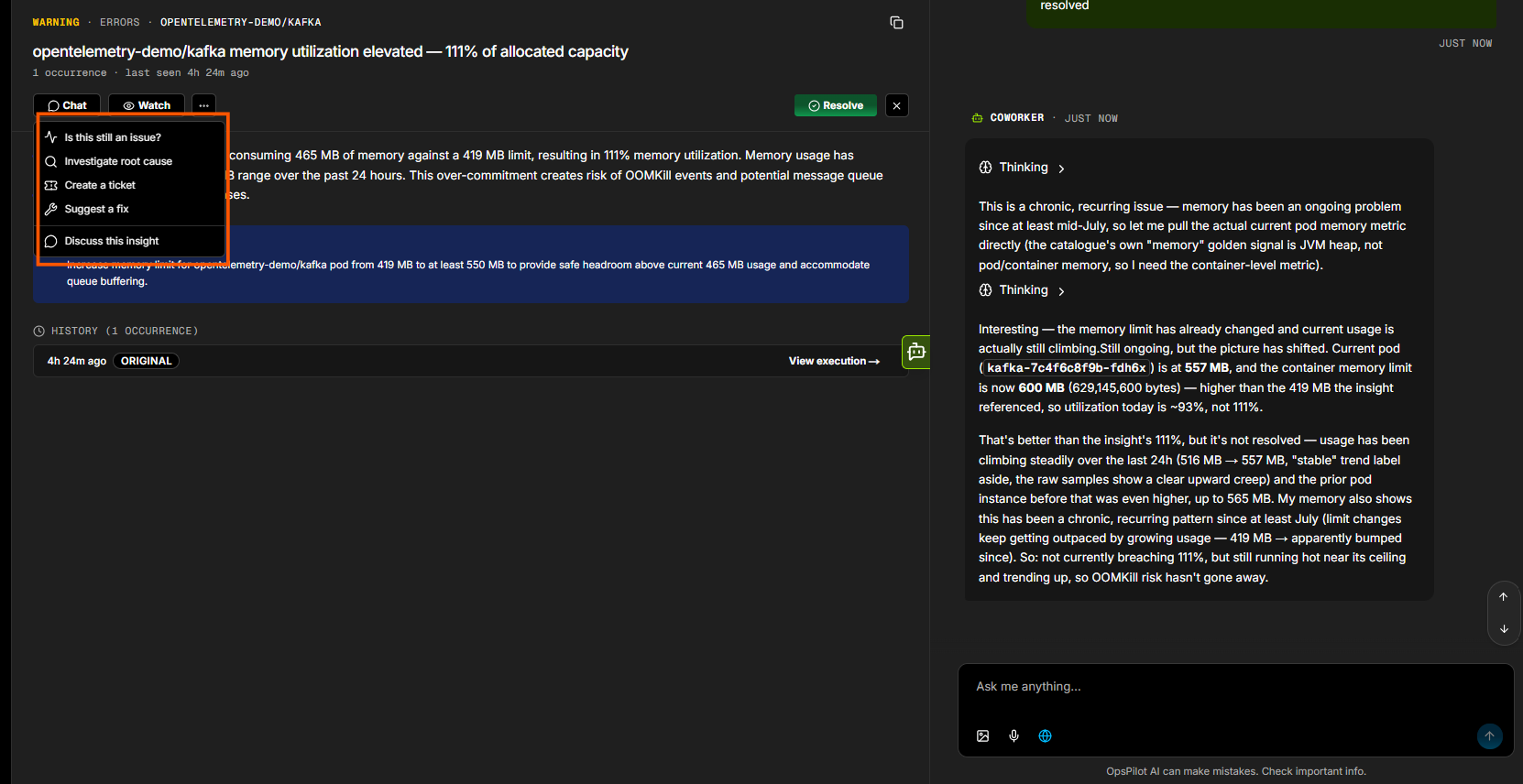
Ask opens a menu of preset questions, each sending the insight to Coworker with its full context already loaded:
| Question | What it does |
|---|---|
| Is this still an issue? | Checks the current state to see if the problem is ongoing or resolved |
| Investigate root cause | Kicks off a root cause analysis |
| Create a ticket | Creates a ticket for the issue |
| Suggest a fix | Recommends remediation steps or best practices |
Chat opens a free-form conversation about the insight instead, for anything those four don't cover.
Watching an insight
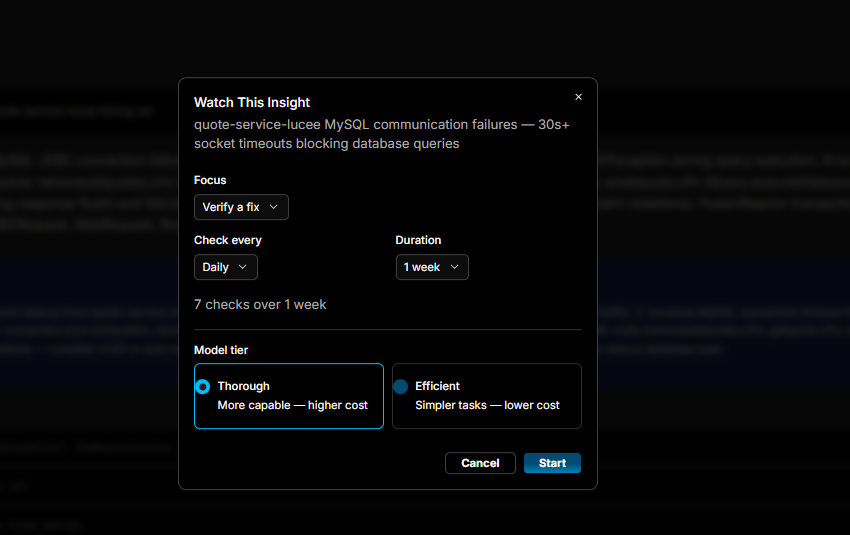
Watch opens the Watch This Insight dialog, which schedules a recurring check so Coworker keeps an eye on the insight for you:
| Field | Description |
|---|---|
| Focus | What each check should focus on - for example, Verify a fix |
| Check every | How often to run the check - for example, Daily |
| Duration | How long to keep watching - for example, 1 week |
| Model tier | Thorough (more capable, higher cost) or Efficient (simpler tasks, lower cost) |
A summary line (for example, "7 checks over 1 week") shows how many checks the schedule adds up to. Click Start to begin watching, or Cancel to close.
Need more help?
Contact support in the chat bubble and let us know how we can assist.